How to Dub a YouTube Video into Another Language (2026)
Dub a YouTube video into other languages: auto-dubbing vs your own AI dub, how to add a multi-language audio track in Studio, costs and a QA checklist.
Most of the world doesn't watch YouTube in English. If your videos only speak one language, most potential viewers scroll past them.
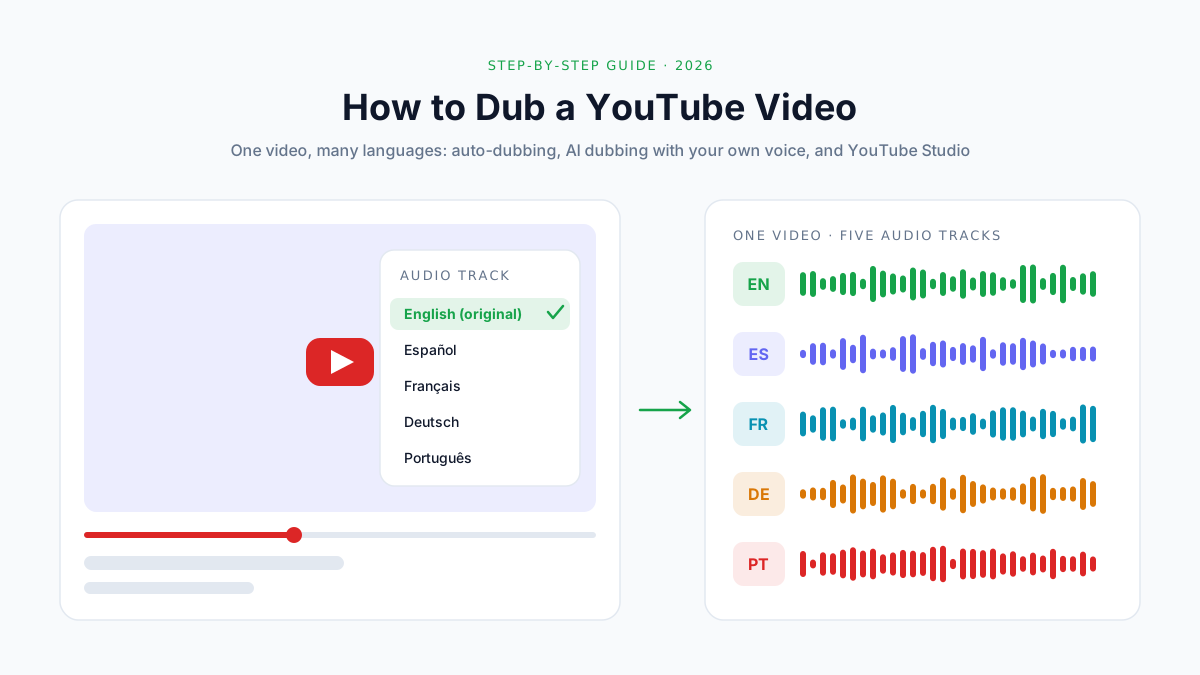
Dubbing fixes that. And since YouTube opened multi-language audio to millions of creators in September 2025, you no longer need a second channel to do it. One video can carry several audio tracks, and each viewer hears the one that matches their language.
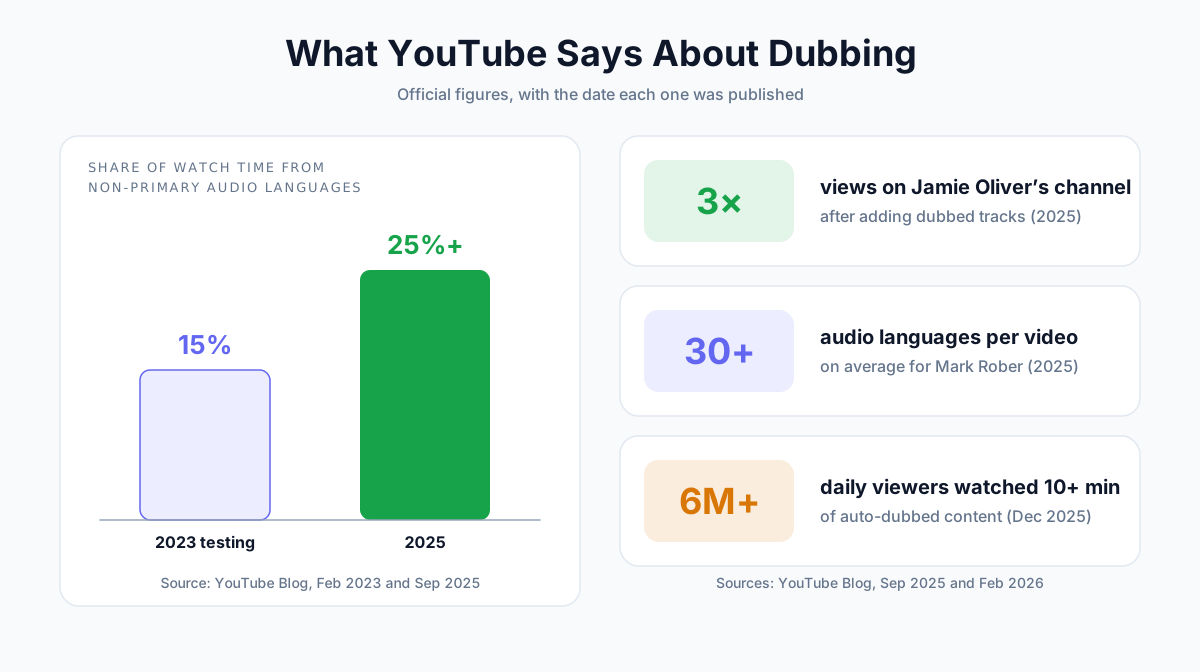
According to YouTube, channels that upload dubbed tracks now get more than 25% of their watch time from viewers watching in a language other than the video's original.
This guide shows you how to dub a YouTube video step by step, from choosing a method to publishing the dubbed track and checking that it works.
What you'll learn:
- The three ways to dub a YouTube video, and which one fits your channel
- How YouTube's free automatic dubbing works, and where it falls short
- How to dub a video with AI and keep your own voice in every language
- How to add a dubbed audio track in YouTube Studio
- What the dub file needs to look like before you upload it
- How much dubbing costs, and how to tell if it's working
Quick answer: To dub a YouTube video, create a translated audio track and upload it in YouTube Studio → Languages → Add language → Dub. You can let YouTube's free automatic dubbing generate the track (English pairs only), or dub the video yourself with an AI dubbing tool that keeps your voice, then upload the audio-only file. Viewers switch tracks under Settings → Audio track.
Which Dubbing Route Should You Use?
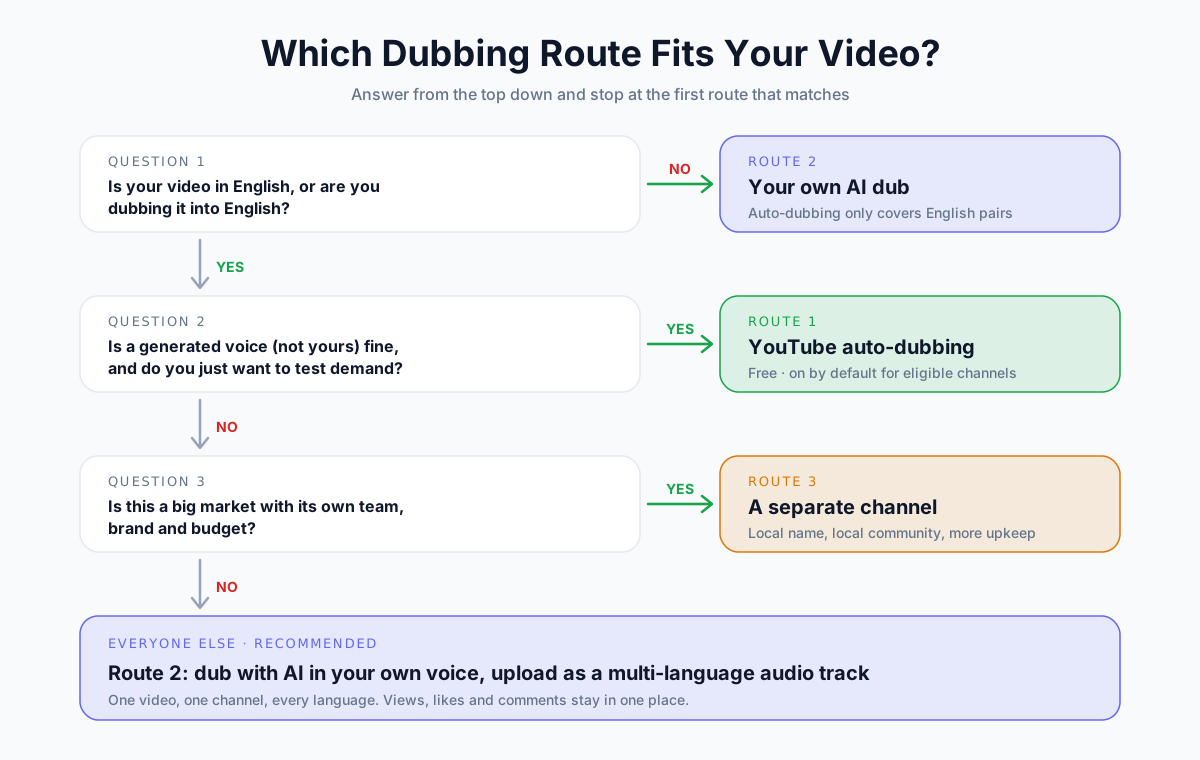
There are three ways to put your video in front of viewers who speak another language. They differ in cost, control, and how much the result sounds like you.
The 3 Routes Compared
| YouTube auto-dubbing | Your own AI dub (multi-language audio) | Separate channel per language | |
|---|---|---|---|
| Cost | Free | Paid, per minute | Paid, per minute, plus channel upkeep |
| Whose voice | A generated voice | Your own voice, cloned | Your own voice or a voice actor |
| Language pairs | To or from English only | Any supported pair | Any |
| Control over script | Review, publish, or delete | Full: check and redo any track | Full |
| Views counted | On the original video | On the original video | On a separate video |
| Setup effort | Almost none | About 15–30 minutes per video | High: new channel, uploads, community |
| Best for | Testing demand for free | Growing one channel in several languages | Big brands building local audiences |
For most creators, the answer is simple:
- Start with auto-dubbing if your video is in English (or into English) and you want to test demand at zero cost.
- Upload your own AI dub when you want your own voice, a language pair YouTube doesn't cover, or more control over quality.
- Only open separate channels when a market is big enough to justify its own team, thumbnails and community.
How YouTube Dubbing Works
Before you start, it helps to understand what YouTube actually does with a dubbed track.
What Is Multi-Language Audio?
Multi-language audio is a YouTube feature that attaches several audio tracks, one per language, to a single video. The picture, title, comments and view count stay the same. Only the soundtrack changes, depending on who is watching.
YouTube first tested it with MrBeast and a small group of creators in 2023. On September 10, 2025, it announced that the feature was rolling out to millions of creators.
What Viewers See
Viewers don't have to do anything. YouTube picks the track based on their preferred language, which it works out from their watch history.
If they want a different track, they open the player's Settings (gear icon) → Audio track and pick a language. The original audio is always in that list, so nobody gets stuck with a dub they don't want.
What the Numbers Say
YouTube has shared a handful of official numbers. Here they are with dates, because the older figures get quoted a lot without context.
| Year | What YouTube reported | Source |
|---|---|---|
| 2023 | Creators testing multi-language audio got over 15% of watch time from non-primary languages | YouTube Blog, Feb 2023 |
| 2025 | That share rose to more than 25% for channels uploading dubs | YouTube Blog, Sep 2025 |
| 2025 | Jamie Oliver's channel saw its views triple after adding dubbed tracks | YouTube Blog, Sep 2025 |
| 2025 | Mark Rober averages more than 30 audio languages per video | YouTube Blog, Sep 2025 |
| 2025 | More than 6 million viewers a day watched at least 10 minutes of auto-dubbed content (December) | YouTube Blog, Feb 2026 |
📝 Note: These are YouTube's own figures from channels that took dubbing seriously. A single dubbed video on a small channel won't triple your views. The gains come from dubbing consistently, which we cover in the measurement section below.
Who Can Upload a Dub?
To upload your own dubbed track, your channel needs access to YouTube's advanced features. That means your phone number is verified and your channel either has enough history or you've verified your ID or a video.
Check this under YouTube Studio → Settings → Channel → Feature eligibility. If "Advanced features" is on, you're ready.
Method 1: Use YouTube's Automatic Dubbing (Free)
YouTube auto-dubbing is a free feature that translates a video's speech and generates a dubbed track with a synthetic voice. It launched in December 2024 for a limited group of channels and opened to everyone in February 2026.
Which Languages It Supports
Auto-dubbing only works between English and another language. As of September 2026, YouTube Help lists:
| Direction | Languages | Count |
|---|---|---|
| From English into | Arabic, Bengali, Dutch, French*, German*, Hebrew, Hindi*, Indonesian*, Italian*, Japanese, Korean, Malayalam, Polish, Portuguese*, Punjabi, Russian, Spanish*, Tamil, Telugu, Ukrainian | 20 |
| Into English from | All of the above, plus Chinese (Simplified and Traditional), Farsi, Romanian, Swahili, Thai, Turkish, Urdu, Vietnamese | 29 |
*Supports Expressive Speech, which tries to carry over the speaker's tone and emotion.
Anything that doesn't involve English, such as Spanish to French or Japanese to Korean, isn't supported.
How to Turn It On, Review It, or Remove It
Auto-dubbing is switched on by default for eligible channels. You control it in two places:
- To change the default: in the YouTube Studio app, go to Settings → Content → Automatic dubbing. Choose on, off, or Publish manually (dubs are created but wait for your approval).
- To review a single video: on desktop, open Languages, hover over a language, and use the options menu to Publish, Unpublish or Delete the dub.
Dubbed videos show an "auto-dubbed" label in the description, so viewers know the voice isn't yours.
Where Auto-Dubbing Falls Short
Auto-dubbing is a great free test. But it has real limits:
- English pairs only. No Spanish-to-French, no Japanese-to-Korean.
- Not your voice. It uses a generated voice. Expressive Speech copies tone and emotion in 8 languages, but it's still not you.
- Skipped videos. YouTube won't dub videos over 120 minutes, music-only videos, videos with fast speech or undetectable language, or videos with copyrighted content.
- No lip sync (yet). Lip sync is an experiment available to select channels only.
- Errors you can't fix. YouTube lists mispronunciations, names, idioms, jargon and background noise as common problems. You can review the transcript, but you can't rewrite the dub line by line.
If any of these matter, use Method 2.
Method 2: Dub the Video with AI and Upload Your Own Audio Track
This is the method that gives you the most control. You create the dub yourself, check it, then upload it as a multi-language audio track.
Most AI dubbing tools follow the same four-stage pipeline:
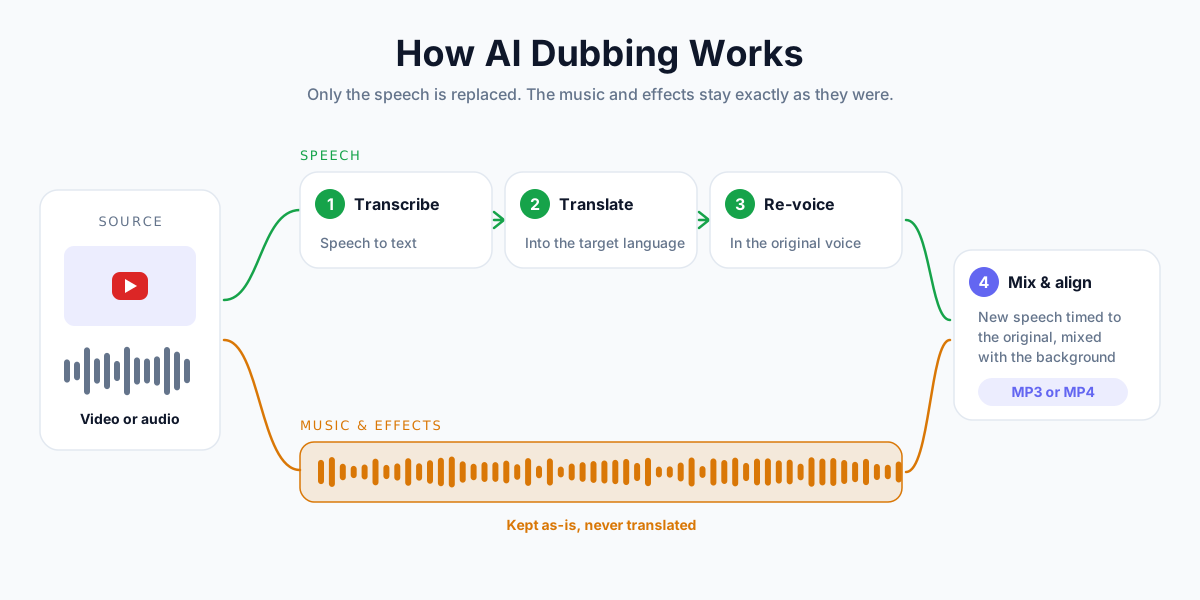
We'll use AnySpeech AI Dubbing in the steps below. The workflow is similar in other tools.
Step 1: Prepare Your Source
Good dubs start with good source audio. The AI has to hear every word before it can translate it.
- Use the final cut. Dub after editing, not before. Any cut you make later throws the timing off.
- Clean up the audio first. If there's wind, hum or loud music under the speech, run it through a voice isolator before dubbing.
- Check the length. AnySpeech dubs up to 15 minutes per file (up to 2 GB). For longer videos, see the section on videos longer than 15 minutes below.
💡 Pro tip: Upload an audio file (MP3, WAV or M4A exported from your editor) rather than the full video. You'll get an audio-only MP3 back, which is exactly what YouTube wants for a dubbed track. That saves Step 4.
Step 2: Dub It with AI
- Open AI Dubbing.
- Choose Upload file and drop in your audio or video, or choose Paste a link and paste the URL of your own public YouTube video.
- Leave From on auto-detect.
- Pick your target language under To.
- The toolbar shows the cost before you start. Press Dub.
- Wait a few minutes. You can leave the page once dubbing starts.
- Press Download. Audio input comes back as MP3, video input as MP4.
AnySpeech keeps the original speaker's voice in the new language, so your Spanish or German track still sounds like you.
It currently dubs into 16 languages: English, Spanish, French, German, Italian, Portuguese, Chinese, Japanese, Korean, Russian, Arabic, Hindi, Dutch, Polish, Turkish and Indonesian.
Step 3: Review the Dub
Never publish a dub you haven't listened to. At minimum, play the first minute, a middle section, and the last minute, and check:
- Names, brands and product terms
- Numbers, prices and units
- Whether the background music and sound effects are still there
- Whether the dub ends when the video ends
The full list is in the dub quality checklist below. If a line is badly wrong, fix the source (clearer audio, less crosstalk) and dub again.
Step 4: Get an Audio-Only File
YouTube asks for an audio-only file that is roughly the same length as your video. If you dubbed an audio file in Step 2, you already have one. Skip to Step 5.
If you dubbed the video and got an MP4 back, extract its audio. The quickest way is FFmpeg, a free command-line tool:
# Copy the audio track out of the dubbed MP4 without re-encoding
ffmpeg -i my-video-es.mp4 -vn -c:a copy my-video-es.m4a

# Or convert it to MP3
ffmpeg -i my-video-es.mp4 -vn -q:a 2 my-video-es.mp3
Most video editors can do the same thing with an "export audio only" option.
| Check | Why it matters |
|---|---|
| Audio only, no video | The dub upload in Studio expects an audio file |
| Same length as the video | YouTube asks for "roughly the same length"; a short track ends early |
| Music and effects kept | Keeps the video's feel, and avoids copyright surprises (see below) |
| Common format | MP3, WAV and M4A/AAC are widely used; YouTube doesn't publish an official list |
Step 5: Upload the Dub in YouTube Studio
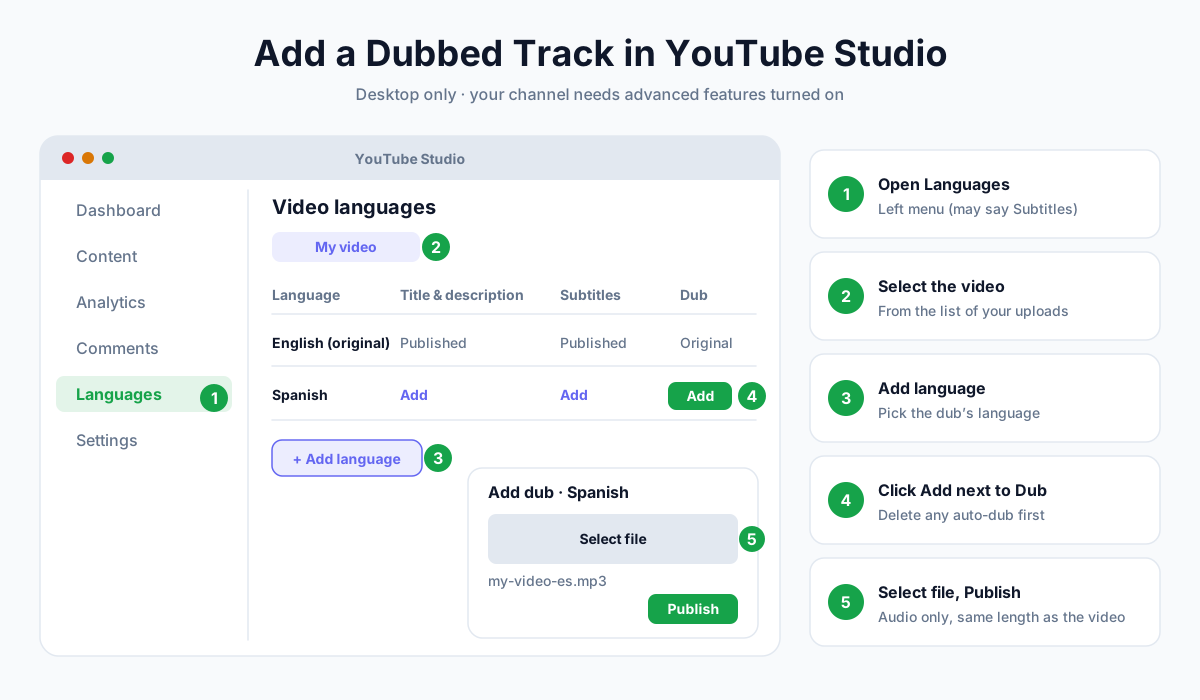
- Open YouTube Studio on a computer.
- In the left menu, click Languages. (On some accounts this may still be called Subtitles.)
- Select the video.
- Click Add language and choose the dub's language.
- Next to Dub, click Add.
- Click Select file and choose your audio file.
- Click Publish.
The track goes live on the same video. Viewers whose preferred language matches will hear it automatically.
📝 Note: If YouTube has already auto-dubbed the video into that language, you must delete the auto-dub first. Otherwise the option to add your own won't appear. To replace a track later, delete it under Audio for that language and upload the new file.
Step 6: Translate the Title, Description and Thumbnail
The dub gets viewers to stay. Translated metadata gets them to click in the first place.
In the same Languages screen, next to Title & description, click Add and enter the translated versions. YouTube says videos can then be found when viewers search using the translated title and description.
You can also upload a localized thumbnail per language. And if you want subtitles too, generate a transcript of your dub with video to text and upload it as a subtitle file. Our guide to getting a transcript of a YouTube video covers the formats.
Videos Longer Than 15 Minutes
AnySpeech dubs up to 15 minutes per file. For a longer video:
- Split the audio at natural pauses into parts of 15 minutes or less (in your editor or with FFmpeg).
- Dub each part into the same target language.
- Join the dubbed parts back together in order, and check that the total length matches the original.
Splitting at pauses, not mid-sentence, keeps each part's translation natural.
What Auto-Dubbing Can't Do: Language Coverage
The biggest reason to dub a video yourself is language pairs. YouTube's auto-dubbing is built around English. Real audiences aren't.
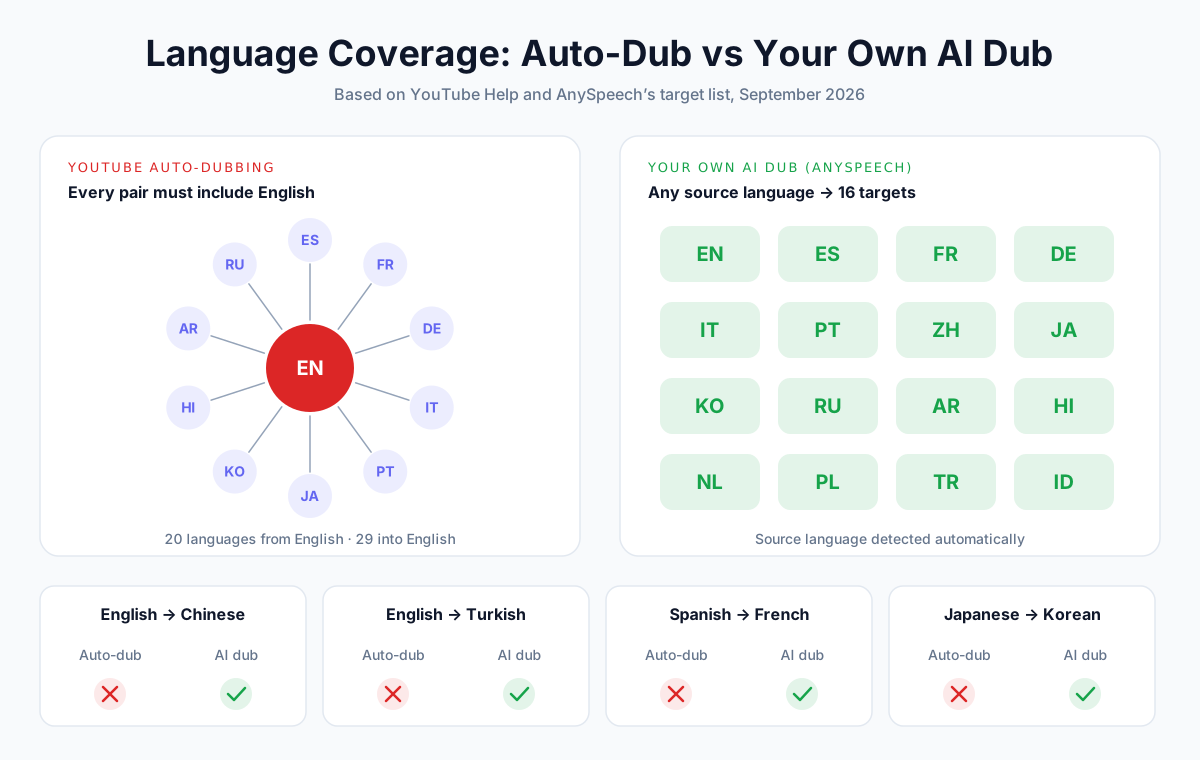
A few examples, based on YouTube's published list as of September 2026:
| You want to dub… | YouTube auto-dubbing | Your own AI dub |
|---|---|---|
| English → Spanish | Yes | Yes |
| English → Chinese | No (Chinese is only supported into English) | Yes |
| English → Turkish | No (Turkish is only supported into English) | Yes |
| Spanish → French | No (no English involved) | Yes |
| German → Italian | No | Yes |
| Japanese → Korean | No | Yes |
| Portuguese → English | Yes | Yes |
If your channel is in Spanish, German, French or another non-English language, auto-dubbing can only take you into English. Every other language has to be dubbed yourself.
Method 3: Launch a Separate Channel per Language
Before multi-language audio existed, big creators ran one channel per language: "MrBeast en Español", and so on. Some still do.
MrBeast himself explained the switch to multi-language audio: "Having a lot of different channels is just honestly a lot more work."
| One video, many audio tracks | One channel per language | |
|---|---|---|
| Views, likes, comments | Combined on one video | Split across channels |
| Subscribers | One channel grows | Each channel starts from zero |
| Upkeep | One upload, extra tracks | Separate uploads, thumbnails, community posts |
| Local branding | Limited: one channel name | Full: local name, local community |
| Analytics | Views and watch time by audio language | Separate dashboards |
| Best for | Most creators | Large brands with local teams |
YouTube's own best-practice advice points the other way: pick one or two languages, and dub as much of your catalogue as you can on your main channel.
The Dub Quality Checklist
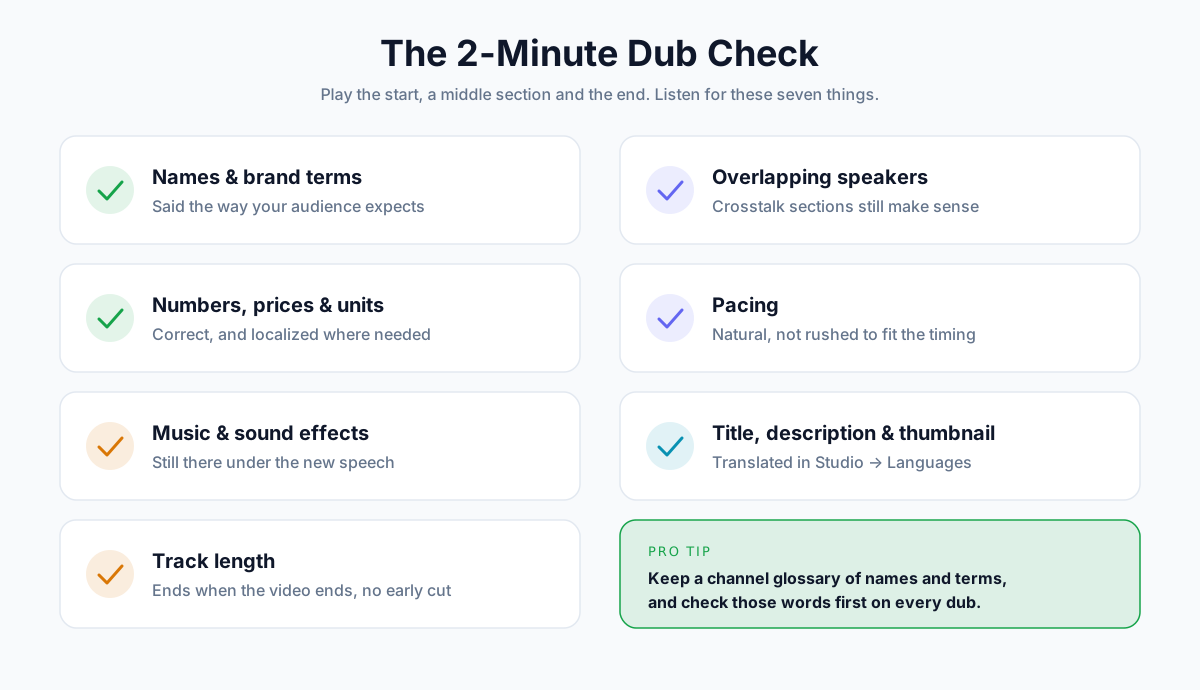
AI dubbing is fast, but it isn't perfect. A two-minute check before you publish catches most problems.
Before You Publish
- Names and brands are said correctly
- Numbers, prices and units are correct and localized
- Background music and sound effects are still there
- Track length matches the video (no early ending, no silence at the end)
- Crosstalk sections are understandable
- Pacing sounds natural, not rushed
- Translated title, description and thumbnail are added
Common Problems and Fixes
| Problem you hear | Likely cause | Fix |
|---|---|---|
| A name or brand is mispronounced | Rare word, no context | Say it clearly in the original; add it to a glossary for your editor |
| Lines are rushed or clipped | The translation is longer than the original line | Leave small pauses when recording; re-dub the section |
| Two speakers blur together | People talking over each other | Avoid crosstalk in future recordings; re-dub from clean audio |
| Words missing in noisy parts | Background noise or loud music | Clean the source with a voice isolator, then dub again |
| The track stops before the video ends | A long video was cut at a limit | Split into parts of 15 minutes or less, dub each, join them |
| Idioms translated literally | Idioms don't survive word-for-word | Rephrase idioms in the original script next time |
💡 Pro tip: Keep a simple glossary for your channel: names, product terms and catchphrases, with how they should sound. Check those words first on every dub.
Why Keeping the Music Matters
YouTube's help page warns that a secondary audio track whose copyrighted content differs from the original's may be removed.
In practice, that means your dub should keep the same background music and effects as the original, with only the speech replaced. AI dubbing tools that separate the voice from the background, including AnySpeech, do this automatically. Still, listen for it in Step 3.
Which Languages Should You Dub Into First?
Don't dub into every language at once. YouTube recommends focusing on one or two. Use your own data to choose them:
| Signal | Where to find it | What it tells you |
|---|---|---|
| Top geographies | Studio → Analytics → Audience | Where people already watch you |
| Subtitle usage | Analytics → Advanced mode → Subtitles/CC | Viewers who need another language |
| Comments in other languages | Your comments tab | Demand people are asking for |
| Similar channels | Competitors with dubbed tracks | Languages that work in your niche |
Then dub your best-performing evergreen videos first, not your newest ones. Evergreen videos keep getting search traffic, so a dub keeps paying off.
How Much Does It Cost to Dub a YouTube Video?
| Option | Cost | Your voice? | Turnaround |
|---|---|---|---|
| YouTube auto-dubbing | Free | No | Automatic |
| AI dubbing (AnySpeech) | 12,000 credits per source minute | Yes | Minutes |
| Human dubbing studio | Quoted per minute and per language | No (voice actor) | Days to weeks |
Here's what AnySpeech AI dubbing works out to on each monthly plan, based on current pricing:
| Plan | Price / month | Credits | Dubbed minutes | Cost per dubbed minute |
|---|---|---|---|---|
| Basic | $9.99 | 50,000 | ~4 | ~$2.40 |
| Standard | $19.90 | 100,000 | ~8 | ~$2.39 |
| Professional | $49.90 | 350,000 | ~29 | ~$1.71 |
| Premium | $99.00 | 800,000 | ~66 | ~$1.49 |
| Max | $199.00 | 2,000,000 | ~166 | ~$1.19 |
Yearly plans are 20% cheaper, which brings the Max plan down to about $0.96 per dubbed minute. Minutes are rounded up per file. AI dubbing is a paid feature, and credit packs work too. See pricing for current details.
So a 10-minute video dubbed into one language costs 120,000 credits. Dubbing it into two languages costs 240,000.
How to Tell If Dubbing Is Working
YouTube Analytics breaks down views and watch time by audio language. Check it 2–4 weeks after publishing:
- Views by audio track. Are people choosing the dub?
- Average view duration per track. Compare it with the original. A much shorter watch time on the dub usually means a quality problem, not a demand problem.
- New geographies. Are viewers arriving from countries that speak the new language?
One creator network, air.io, reported that on one channel, AI-only dubs held viewers for far less time than professional dubs of the same videos. Treat your first dubs as a test, and let the retention numbers tell you whether to improve quality or scale up.
Can You Dub Someone Else's YouTube Video?
Only with permission. Dubbing a video creates a new version of someone else's work, and uploading it without the owner's permission can infringe their copyright.
Dub your own videos, videos from clients who asked you to, or videos whose license allows it. If you're dubbing for a client, get the permission in writing.
📝 Note: This is general guidance, not legal advice. Rules differ by country.
Frequently Asked Questions
Can I dub a YouTube video for free?
Yes, if it's in English or being dubbed into English. YouTube's automatic dubbing is free and turned on by default for eligible channels. It uses a generated voice, not yours, and only supports English pairs. For your own voice or other language pairs, you'll need a paid AI dubbing tool.
How do I add another language audio track to a YouTube video?
In YouTube Studio on a computer, go to Languages, select the video, click Add language, then click Add next to Dub. Select your audio file and click Publish. The file must be audio only and roughly the same length as your video.
Why can't I see the option to add a dub?
Usually for one of two reasons. Your channel may not have advanced features turned on, which requires phone verification and channel history or ID verification. Or YouTube has already auto-dubbed the video into that language, in which case you must delete the auto-dub before uploading your own.
Can I dub YouTube Shorts?
Yes. YouTube's help page says multi-language audio tracks can be added to a video or a Short. The steps in YouTube Studio are the same.
Will dubbing hurt my original video's views or SEO?
No. All audio tracks live on the same video, so views, likes and comments add up in one place. With translated titles and descriptions, the video can also appear in searches in the new language.
Can viewers switch back to the original audio?
Yes. Viewers can pick any track, including the original, under the player's Settings → Audio track. If a viewer's preferred language already matches the original, YouTube plays the original.
How long does AI dubbing take?
A few minutes for a short video. AnySpeech shows live progress, and you can leave the page once dubbing starts. Reviewing the result takes a few more minutes.
Can I keep my own voice in other languages?
Yes, with a voice-preserving AI dubbing tool. AnySpeech re-voices the translated speech in the original speaker's voice, so your Spanish, German or Japanese track still sounds like you. YouTube's own auto-dubbing uses a generated voice instead.
What audio format does YouTube accept for a dubbed track?
YouTube asks for a supported audio-only file that's roughly the same length as the video, but it doesn't publish an official format list. MP3, WAV and M4A (AAC) are the common choices.
How much does it cost to dub a 10-minute YouTube video?
With YouTube auto-dubbing, nothing. With AnySpeech AI dubbing, 120,000 credits per language, which is roughly $10 to $24 depending on your plan. Human dubbing studios usually quote per minute and per language, with a turnaround of days rather than minutes.
Start Dubbing Your Channel
Dubbing used to mean a second channel, a studio, and weeks of work. Now it's one video, a few extra audio tracks, and an afternoon.
Start small. Pick one language your analytics point to. Dub your three best evergreen videos, add translated titles, and watch the numbers for a month.
Ready to try it? Dub your first video with AnySpeech AI Dubbing, and keep your own voice in every language.
Author

Categories
More Posts
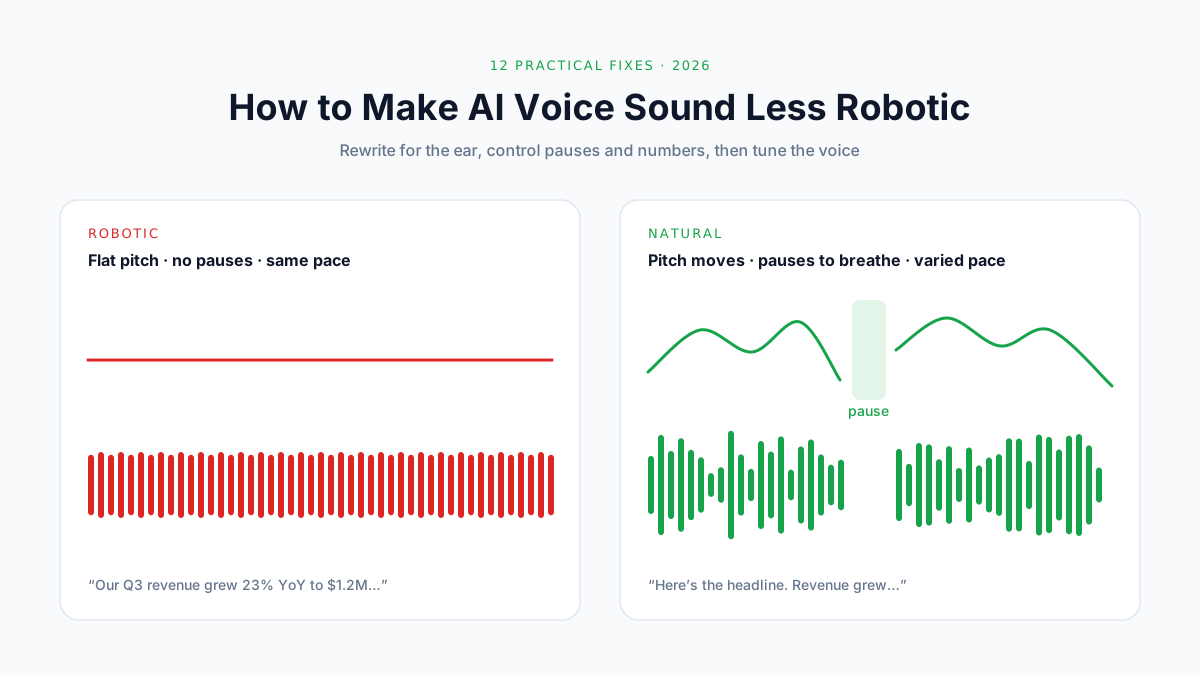
How to Make AI Voice Sound Less Robotic: 12 Fixes (2026)
Why AI voices sound robotic, and 12 fixes that work: write for the ear, use punctuation for pauses, spell out numbers, fix pronunciation, tune speed and more.

How to Turn On Voice Isolation: Step-by-Step Guide for Every Device (2026)
Learn how to turn on voice isolation on iPhone, iPad, Mac, and Android. Step-by-step instructions for FaceTime, phone calls, and tips for AI audio isolation tools.
How to Get a Transcript of a YouTube Video (6 Ways, 2026)
Get a transcript of any YouTube video: built-in Show transcript, phone, free generators with TXT/SRT export, YouTube Studio, videos with no captions, and code.