
Free YouTube Transcript Generator
Paste a YouTube link and get a clean, timestamped transcript in seconds — ready to read, copy, or export as TXT, SRT and VTT.
Why a YouTube Transcript Saves You Hours
More than 500 hours of video are uploaded to YouTube every minute. Nobody has time to watch all of it — and you rarely need to.
People speak at roughly 150 words per minute, but read at 250 or more. A transcript of a YouTube video lets you cover a 20-minute lecture in about eight minutes, jump straight to the part you need, and copy the exact sentence instead of scrubbing back and forth. A free YouTube transcript generator makes that text a one-click step instead of a chore.
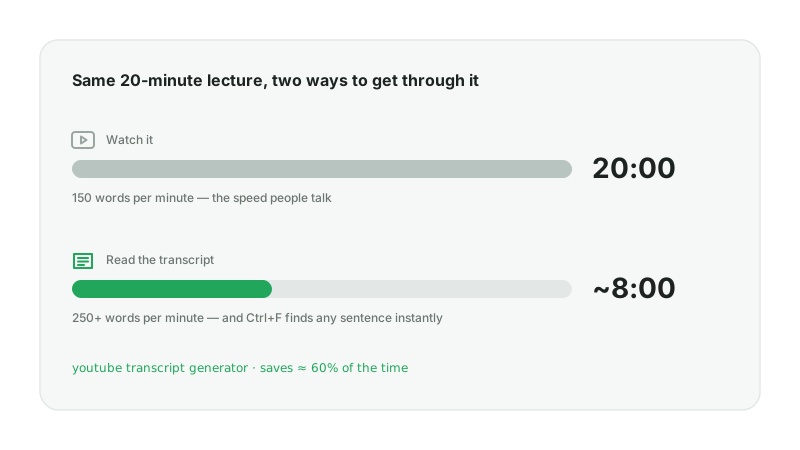
Where the time actually goes
Searching.
You remember a quote but not the timestamp. With a transcript, Ctrl+F finds it in one second.
Note-taking.
Pausing every ten seconds to type what was said turns a 30-minute video into a 90-minute job.
Reusing.
Blog posts, show notes, captions and translations all start from text — never from the video file.
What a transcript gives you that the video can’t
- A searchable, quotable record of every sentence
- Timestamps, so you can cite or jump to the exact moment
- A file you can edit, translate, summarise or turn into subtitles
What Is a YouTube Transcript Generator?
A YouTube transcript generator is a tool that takes a video link, reads the video’s caption track, and returns the spoken words as a text file — usually with timestamps — without you downloading or watching the video.
Most videos on YouTube already carry a caption track. Creators upload some of them by hand; YouTube generates the rest automatically with speech recognition. A YouTube transcript generator reads that track, cleans it up, and gives it to you in a format you can actually use.
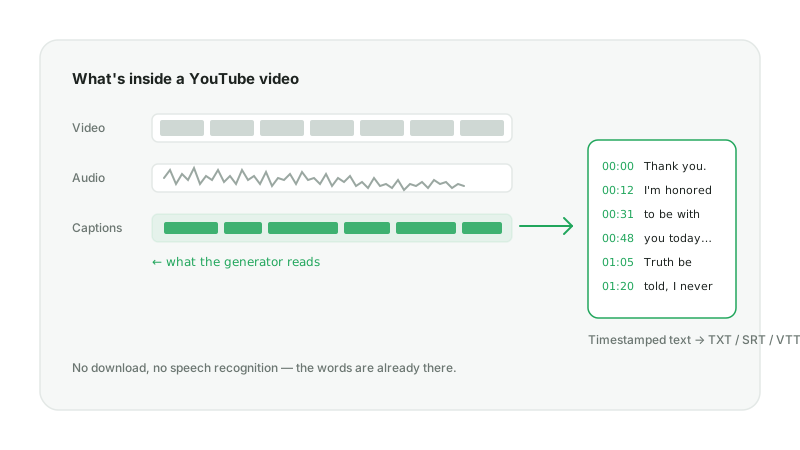
Captions vs. transcript — what’s the difference?
Captions are timed fragments drawn on top of the picture, a few words at a time. A transcript is the same text arranged for reading: full sentences, paragraphs, and optional timestamps at the start of each line. This tool outputs both — a clean transcript for reading and an SRT/VTT file if you need the caption timing back.
Creator captions vs. auto captions
When a video has captions the creator uploaded, AnySpeech uses those first — they are almost always more accurate than automatic ones. If only automatic captions exist, you get them, and you can run the text through our AI clean-up to fix punctuation and casing.
How to Generate a Transcript from a YouTube Video in 3 Steps
The whole process takes under a minute for a typical 15-minute video. A free account gives you three transcripts a day; no card is required.
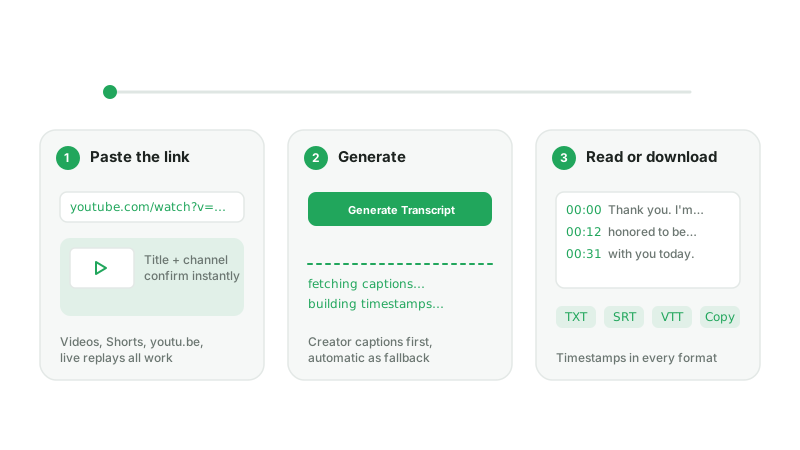
Step 1 — Paste the YouTube link
Copy the URL from your browser’s address bar or the Share button and paste it into the box above. Regular videos, Shorts, live replays and youtu.be short links all work. A preview card shows the title and channel so you can confirm it’s the right video.
Step 2 — Click “Generate Transcript”
AnySpeech fetches the best available caption track — creator-made first, automatic second — and rebuilds it into readable, timestamped text. Most videos come back in 10–40 seconds; very long ones can take a couple of minutes.
Pro tip
Paste a link to a specific moment (&t=5m30s)? We ignore the timestamp and return the full transcript, so you never lose context.
Step 3 — Read, copy, or download
The result opens in a transcript viewer with a timestamp beside every line. Copy the whole thing, or download it as plain TXT, TXT with timestamps, SRT or VTT for subtitle editors.
Watch out
A handful of videos have no caption track at all — brand-new uploads, music videos, and anything where the creator disabled captions. For those, skip to the section on uploading the video instead.
What You Can Do with a YouTube Video Transcript
Once a YouTube transcript generator has put the words in a text file, the video becomes raw material for almost anything.
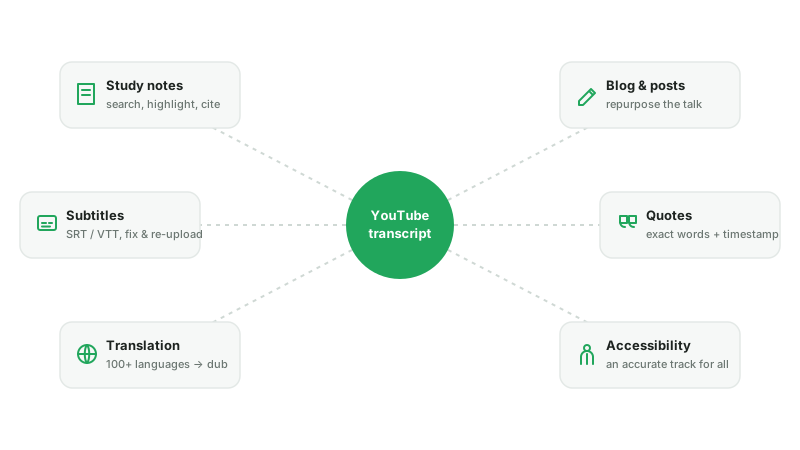
Study and research
Turn lectures and interviews into notes you can search and highlight. Quote speakers accurately with a timestamp for your citation.
Content repurposing
Draft a blog post or newsletter from a talk. Pull the three strongest lines for social posts. Write show notes for a podcast episode in minutes.
Subtitles and accessibility
Download the SRT or VTT, fix any errors, and upload it back to YouTube or into your video editor. Deaf and hard-of-hearing viewers get an accurate track; everyone else gets a searchable one.
Translation and localization
Convert the transcript to text, translate it into any of 100+ languages inside AnySpeech, and use the translated script for a dubbed version or a localized article. If you just want the words without timestamps, our YouTube to text converter gives you a clean paragraph view.
YouTube’s Built-in “Show Transcript” vs. a YouTube Transcript Generator
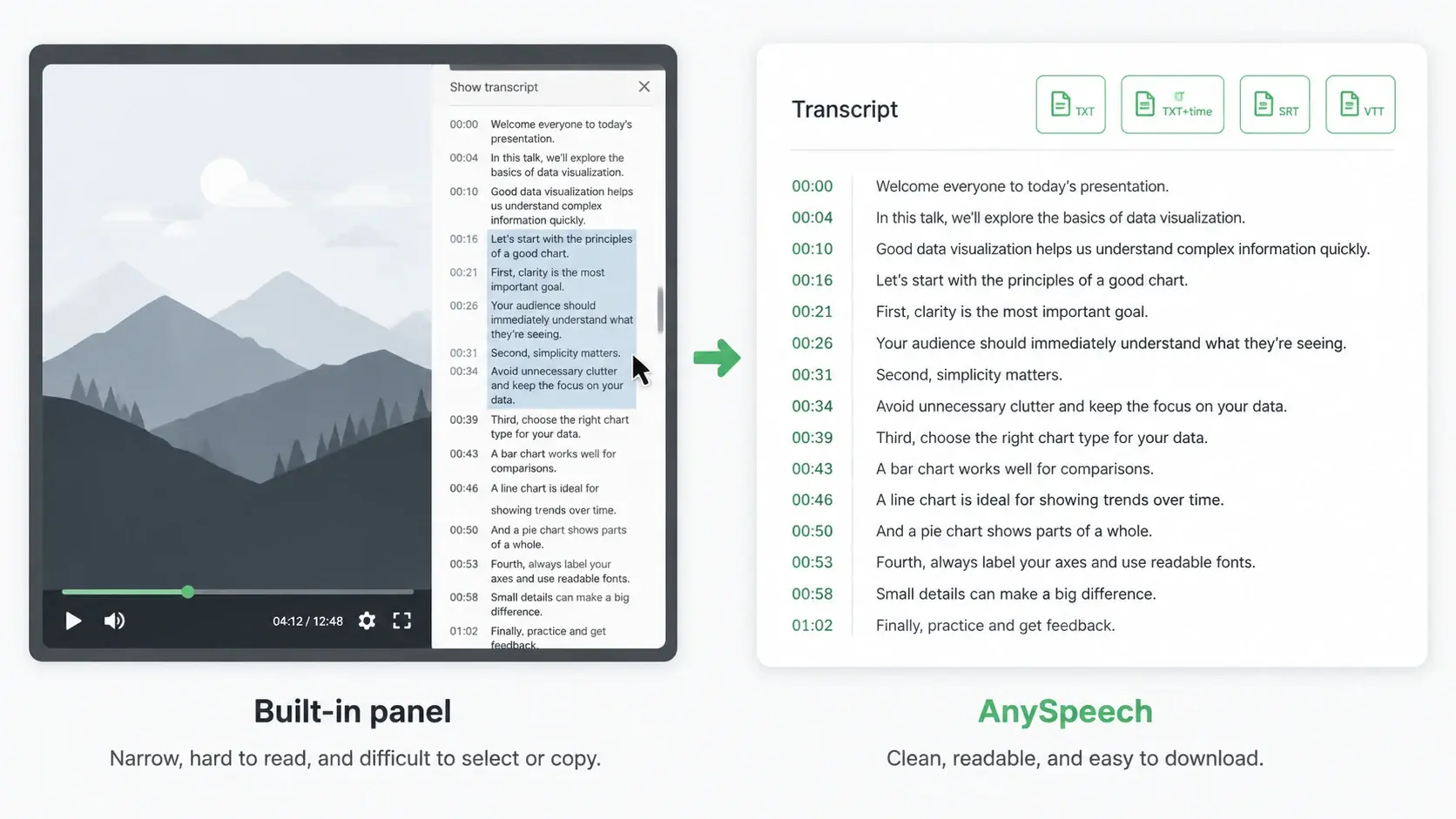
YouTube has a transcript panel hidden under the “…more” button below a video. It’s fine for a quick look; it isn’t built for getting the text out.
| Feature | YouTube “Show transcript” | AnySpeech YouTube transcript generator |
|---|---|---|
| Copy the full text | Manual select-and-drag, line by line | One click |
| Download as a file | No | TXT, TXT + timestamps, SRT, VTT |
| Timestamps | Yes, but tied to the panel | Yes, in every format |
| Works on mobile | Barely | Yes |
| Videos without captions | Nothing | Upload the video for AI transcription |
| Translate the transcript | Only with the page language | 100+ languages |
| Turn it into audio | No | AI dubbing, podcast, text to speech |
When the built-in panel is enough: you want to glance at one sentence while the video is open.
When you need a generator: you want the text as a file, on your phone, or for anything beyond reading.
No Captions? Transcribe the Audio Instead
About one in three links people paste has no caption track — music, older uploads in less common languages, or captions the creator turned off — and no YouTube transcript generator can read captions that don’t exist. Instead of a dead end, AnySpeech offers to transcribe the video’s audio with AI speech recognition right on this page, so you still get a transcript from the YouTube video.
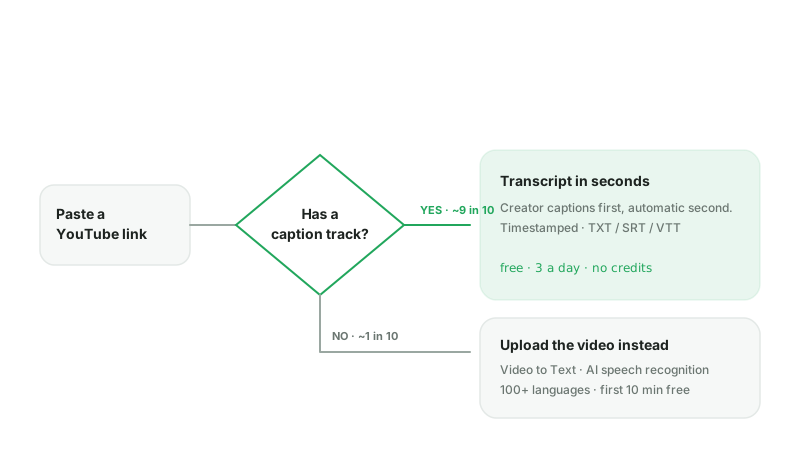
How the fallback works
- 1The tool tells you the video has no captions and shows its length and the credit cost.
- 2On a paid plan, click “Transcribe the audio with AI” and confirm the charge in the dialog — nothing runs until you do.
- 3We fetch the audio track, transcribe it in 100+ languages with timestamps, and open the same result page with translation and export.
- 4Prefer to upload the file yourself? Video to Text takes MP4, MOV, MKV, WebM and more, with the first 10 minutes free.
What it costs
Audio transcription is 500 credits per minute on any paid plan — roughly $0.10 a minute on the Basic plan — the same rate as uploading a file, and credits are refunded in full if it fails. Free accounts can still read captions on any video that has them. Our guide on how to transcribe audio to text walks through the accuracy checks worth doing afterwards.
Video to TextFrom Transcript to Voice: What to Do Next
Text is the halfway point. Because AnySpeech is a voice platform, the transcript can go straight back into audio.
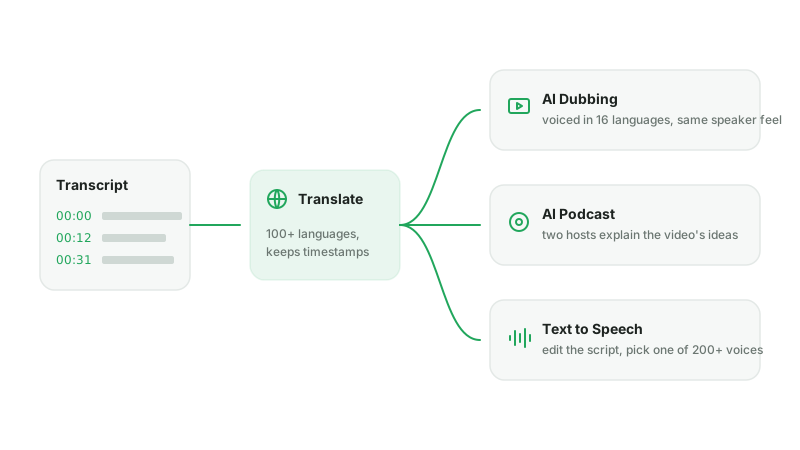
Translate, then dub
Translate the transcript into Spanish, German, Japanese or any of 16 dubbing languages, then let AI dubbing produce a voiced version that keeps the original speaker’s tone.
Turn a lecture into a podcast
Paste the transcript into the AI Podcast Generator and get a two-host conversation that explains the video’s ideas in your own language.
Re-voice a script
Edit the transcript, pick one of 200+ voices, and generate a fresh voiceover with text to speech — handy when you want to reuse a script without the original audio.