
YouTube to Text Converter
Paste a YouTube link and get the spoken words as clean, copy-ready text — no download, no typing.
What you get when you convert YouTube to text
YouTube to text means turning the words spoken in a YouTube video into plain, readable text you can copy, search and edit — without downloading the video or typing a single line yourself.
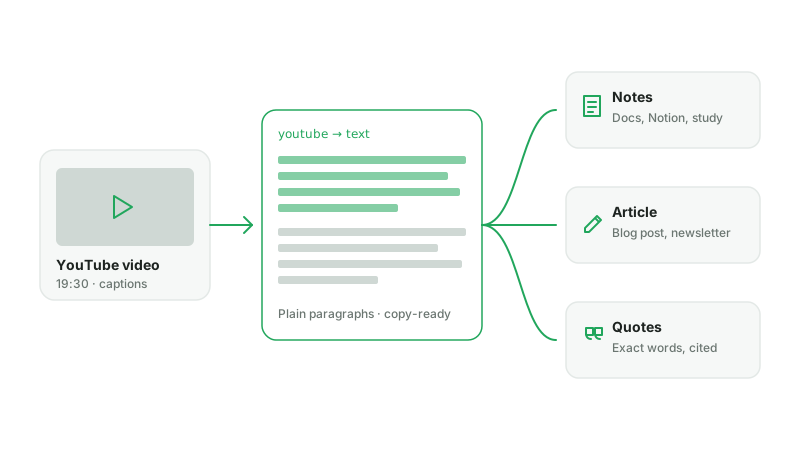
Most people who search for YouTube to text don’t want subtitles. They want the words: a paragraph to paste into notes, a quote to cite, the outline of a talk to turn into an article. That is what this page gives you — the transcript generator’s timestamps are one click away if you need them, but the default here is clean text.
Plain text vs. a transcript
A transcript keeps every line tied to a time code, which is perfect for subtitles and for jumping around a video. Plain text drops the time codes and joins the lines into paragraphs, which is what you want for reading, copying and pasting. The YouTube to text converter opens in the text view; switch to Timestamps whenever you need the time codes back.
Where the words come from
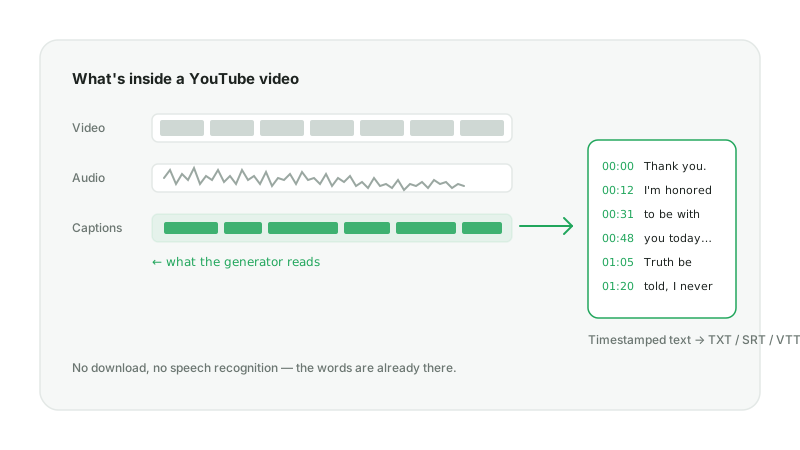
The converter reads the caption track YouTube already publishes for the video — creator-uploaded captions first, automatic captions second. Nothing is downloaded and no speech recognition runs, which is why the result is free and arrives in seconds.
How to convert a YouTube video to text in 3 steps
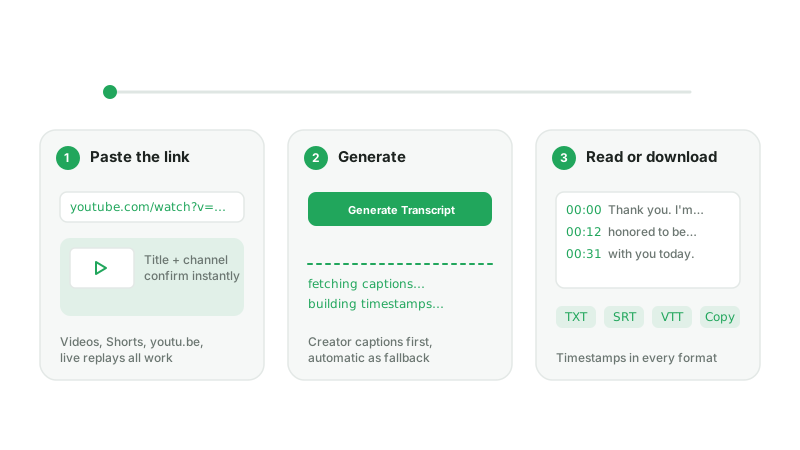
Under a minute for a typical video. A free account gives you three conversions a day; paid plans get a monthly allowance.
Step 1 — Paste the YouTube link
Copy the URL from the address bar or the Share button and paste it above. Regular videos, Shorts, live replays and youtu.be links all work; a preview shows the title so you know it’s the right one.
Step 2 — Click “Generate Transcript”
AnySpeech reads the video’s caption track and rebuilds it into paragraphs. Most videos are ready in 10–40 seconds.
Step 3 — Copy or download the text
The result opens as plain text. Use Copy to grab everything, Download for a TXT file, or switch to the Timestamps view for SRT and VTT. Translate turns the text into any of 10 languages without leaving the page.
What to do with the text
Once the YouTube video is text, it behaves like any other document.
Notes and study
Paste a lecture or tutorial into Notion, Google Docs or Obsidian, highlight what matters and search it later — faster than rewatching.
Turn a video into an article
Start a blog post, newsletter or summary from the speaker’s own words instead of a blank page, then edit down.
Pull exact quotes
Cite a podcast, interview or keynote word for word. Flip to the Timestamps view to note the exact moment for your reference.
Read it in your language
Translate the text into Spanish, Japanese, German and more right on the result page, or send it to AI dubbing to hear the video re-voiced.
Which videos and languages work
Any public video with a caption track: regular uploads, Shorts and finished live streams, in more than 100 caption languages, up to 3 hours long. Private, members-only, age-gated and region-locked videos don’t expose captions, and playlists or channels need to be pasted one video at a time.
Videos without captions
About one in three videos has no caption track — music, older uploads in less common languages, or captions the creator turned off. For those, paid plans can transcribe the audio with AI speech recognition right on this page, at 500 credits per minute with the cost shown before you confirm. You can also use Video to Text to upload the file yourself, with the first 10 minutes free.
YouTube to text vs. YouTube transcript generator
They are the same engine with a different first screen. Pick by what you plan to do with the result.
| You want to… | YouTube to text | Transcript generator |
|---|---|---|
| Copy the words into notes or a doc | Yes — opens as paragraphs | Yes, after switching to Text |
| Jump to a moment in the video | Switch to Timestamps | Yes — click any time code |
| Make subtitles (SRT / VTT) | Switch to Timestamps | Yes — one click |
| Quote with an exact time | Switch to Timestamps | Yes |
If subtitles or time codes are the goal, start at the YouTube transcript generator instead. Either way the result page has both views and the same downloads.