How to Transcribe Audio to Text: The Complete Step-by-Step Guide (2026)
Learn how to transcribe audio or video to text fast. A step-by-step walkthrough, a 7-point accuracy checklist, supported formats, and use-case playbooks for meetings, interviews, and subtitles.
You've got an hour-long recording — an interview, a meeting, a lecture — and you need it as text by the end of the day.
Typing it out by hand would take roughly four hours. Nobody has four hours.
The good news: modern AI transcription turns that same hour of audio into clean, editable text in a few minutes, in 100+ languages, with accuracy that reaches up to ~99% on clear recordings.
This guide walks you through exactly how to transcribe audio to text — the three ways to do it, a step-by-step process that works for any file, and the small things that make the difference between a messy draft and a transcript you can actually use.
Quick answer: To transcribe audio to text, upload your file to an audio to text converter, select the spoken language, and let it generate the transcript — usually in minutes. Then review, fix punctuation, and export as text or captions. For long recordings, video files, or noisy audio, an AI speech to text tool is far faster and more accurate than typing by hand.
What you'll learn:
- What "transcribe audio to text" actually means (and how it differs from captions)
- The 3 ways to transcribe — and when each one wins
- A step-by-step walkthrough for any audio or video file
- The 7-point checklist that fixes most accuracy problems
- Use-case playbooks for meetings, interviews, subtitles, and study notes
Let's get into it.
What does it mean to transcribe audio to text?
Transcription is the process of converting spoken words in an audio or video recording into written text. You put a voice recording in; you get a document of words out.
That's the opposite of text to speech, which takes written words and reads them aloud. Transcription goes the other direction: speech in, text out.
It's also slightly different from captions or subtitles. A transcript is the plain text of everything that was said. Subtitles are that same transcript broken into timed lines that sync with the video. In other words: subtitles are a transcript plus timestamps.
💡 In short: Transcription = the words. Subtitles = the words + timing. You usually create the transcript first, then add timestamps if you need captions.
When you actually need to transcribe audio
Transcription quietly powers a lot of everyday work. You probably need it more often than you think:
- Meetings — turn a call recording into searchable notes and action items.
- Interviews and journalism — pull exact quotes without scrubbing back and forth.
- Podcasts — generate show notes, blog posts, and chapter summaries from an episode.
- Lectures and study — convert a recorded class into notes you can highlight and review.
- Video subtitles — get the base text for accurate captions.
- Voice memos — capture a spoken idea and keep it as text you can edit later.
- Content repurposing — one recording becomes an article, a newsletter, and social posts.
- Records and compliance — keep a written account of calls, consultations, or briefings.
The common thread: anything spoken becomes something you can search, edit, quote, and reuse. A one-hour recording that took an hour to say takes minutes to transcribe — and seconds to search afterward.
The 3 ways to transcribe audio to text
There are three realistic ways to get a transcript. Which one's right depends on length, accuracy needs, and how often you do it.
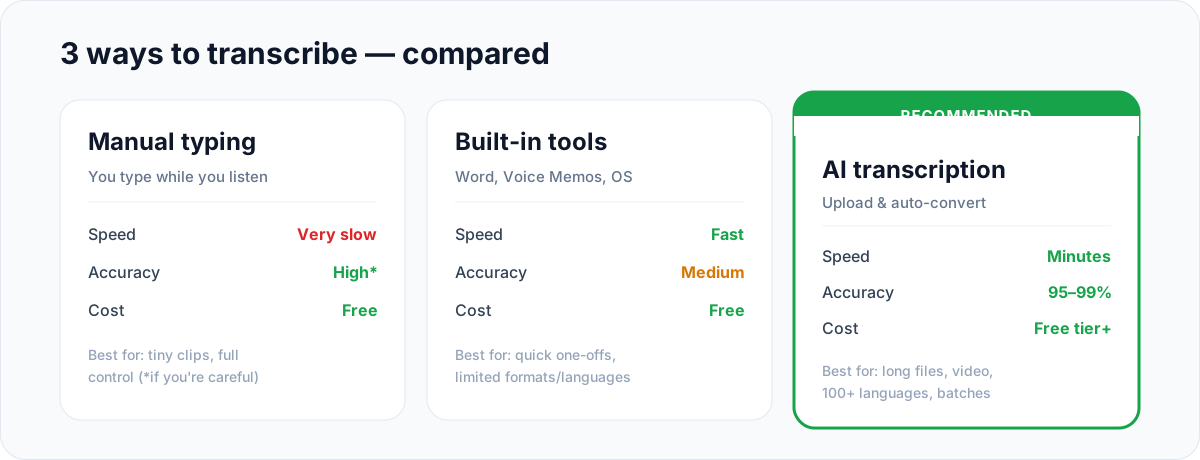
1. Manual typing
You listen and type it out yourself, pausing and rewinding as you go.
- Speed: very slow — expect roughly 4 hours per hour of audio.
- Accuracy: high, if you're careful and the audio is clear.
- Cost: free.
- Best for: very short clips, or when you need word-perfect control over a sensitive recording.
2. Built-in tools
Many apps and operating systems include basic dictation or transcription — Microsoft Word's transcribe feature, Apple's Voice Memos transcripts, Google Docs voice typing.
- Speed: fast.
- Accuracy: medium — fine for clean speech, shaky with accents, noise, or multiple speakers.
- Cost: free.
- Best for: quick one-off transcripts when you already live in that app, and don't need many formats or languages.
3. AI transcription tools
You upload a file (or paste a link) and an AI model converts the whole thing automatically.
- Speed: minutes, even for long files.
- Accuracy: ~95–99% on clean audio, with support for 100+ languages.
- Cost: free tiers exist; paid plans add length, batching, and accuracy.
- Best for: long recordings, video, multiple languages, and anything you do regularly.
For most people, AI transcription wins on every axis that matters. The rest of this guide focuses on that route — because it's the one that scales.
How to transcribe any audio or video to text, step by step
Here's the full process. It's the same whether you're working with a podcast episode, a Zoom recording, or a voice memo.
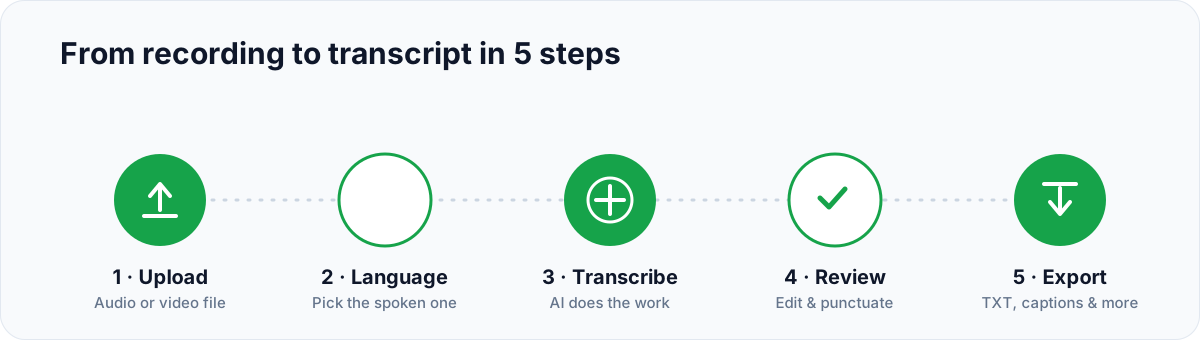
Step 1: Prepare your file
Find the recording you want to transcribe. It can be an audio file (MP3, WAV, M4A) or a video file (MP4, MOV) — the tool reads the voice track either way. If the audio is noisy, this is the moment to clean it up (more on that below).
Step 2: Upload it to a transcription tool
Open an audio to text converter and upload your file. If you only have an MP3, you can go straight to the MP3 to text tool. No software install needed — it runs in the browser.
Step 3: Choose the spoken language
Select the language that's actually spoken in the recording. This single setting has a big impact on accuracy — picking the right language (and accent, where offered) helps the model interpret words correctly the first time.
Step 4: Generate and review the transcript
Start the transcription. In a few minutes you'll get the full text back. Read through it once — AI handles the heavy lifting, but a quick human pass catches names, jargon, and the occasional misheard word.
Step 5: Edit, format, and export
Fix any punctuation, break the text into paragraphs, and label speakers if needed. Then export — as plain text for notes, or as a timed caption file if you're subtitling a video.
📝 Note: Free tiers often cap file length or size. For long recordings, split the file or use a plan that supports longer uploads.
Which files and sources you can transcribe
Almost anything with a voice track is fair game:
| Source | Works? | Notes |
|---|---|---|
| MP3 / WAV / M4A / AAC | ✅ | The standard audio formats |
| MP4 / MOV (video) | ✅ | The voice track is read directly |
| Voice memos | ✅ | Great for quick spoken ideas |
| Meeting / call recordings | ✅ | Best with minimal crosstalk |
| Downloaded video clips | ✅ | Transcribe the audio inside |
The rule of thumb: if it has a voice track, it can be transcribed. Quality of the output depends mostly on the quality of the input — which is exactly what the next section is about.
YouTube videos are the one case where you don't download anything. Paste the link into the YouTube transcript generator and it reads the video's caption track — free, timestamped, done in seconds. Only a video with no captions needs the upload route above.
How to get an accurate transcript: the 7-point checklist
AI transcription is good, but it's not magic. These seven habits are the difference between a transcript you trust and one you have to rewrite.
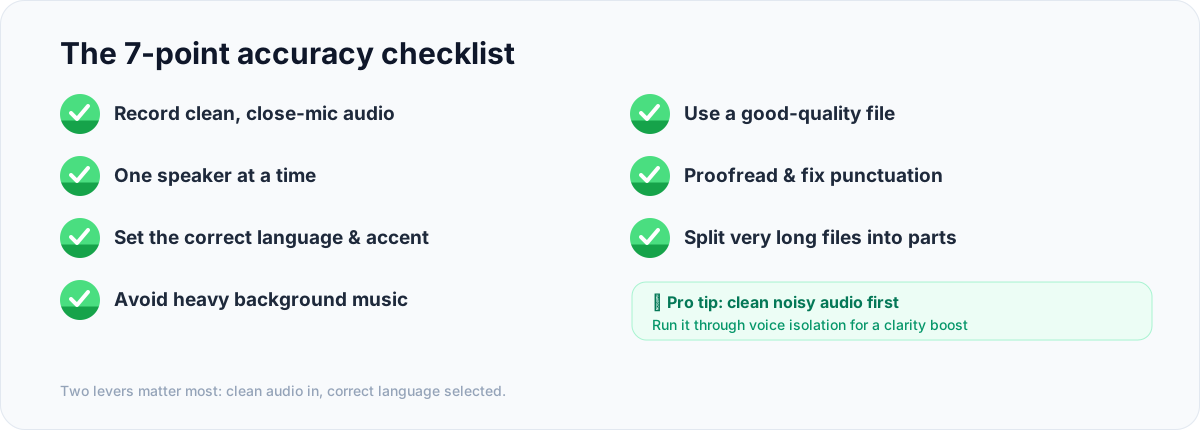
- Record clean, close-mic audio. The closer the microphone, the clearer the speech, the better the result.
- One speaker at a time. Crosstalk is the single biggest accuracy killer. Encourage people not to talk over each other.
- Set the correct language and accent. A mismatched language setting produces garbled output no amount of editing fixes.
- Avoid heavy background music. Music competing with speech confuses the model. Quieter beds transcribe better.
- Use a good-quality file. Heavily compressed or low-bitrate audio loses detail the model needs.
- Proofread and fix punctuation. A two-minute read-through catches names and adds the commas and full stops that make text readable.
- Split very long files into parts. Long recordings transcribe more reliably — and stay within free-tier limits — when broken into sections.
💡 Pro tip: If your recording is noisy, run it through a voice isolator first. Stripping out background noise before transcription gives the model a cleaner signal to work with — an easy way to raise accuracy on real-world audio recorded in cafés, cars, or busy rooms.
The two levers that matter most: clean audio going in, and the correct language selected. Get those two right and everything else is fine-tuning.
Use-case playbooks
The process is the same, but the workflow around it changes depending on what you're transcribing. Here are five quick playbooks.
Meetings → action items
Transcribe the recording, then skim for decisions and to-dos. Search the transcript for words like "we'll," "next step," and "by Friday" to surface action items fast. Paste the cleaned notes into your project tool and you've got a meeting summary in minutes.
Interviews → clean quotes
Transcribe first, then pull quotes directly from the text instead of scrubbing the audio. Keep speaker labels so attribution stays clear. For journalism, always double-check sensitive quotes against the original audio.
Video → subtitles
Transcribe the video's audio to get the base text, then split it into short timed lines to create a caption file. Accurate captions widen your audience and boost watch time — and most of the work is just getting the transcript right first.
Lectures → study notes
Turn a recorded class into text, highlight the key points, and add your own notes in the margins. You can even feed the transcript back into a text to speech tool to re-listen to just the parts you flagged.
One recording → many posts
A single podcast or webinar can become a blog article, a newsletter, and a batch of social clips. Start from the transcript, then reshape it. If you want to go the other way — text back into audio — see our guide on how to make an AI podcast.
Free vs paid transcription — what to expect
Free transcription is genuinely useful, especially for short clips. Here's roughly where the line falls:
- Free tiers usually cap file length or size, may require sign-up, and sometimes limit languages. Perfect for voice memos and short interviews.
- Paid plans unlock longer files, batch uploads, more languages, and steadier accuracy on accents and noisy audio.
If you transcribe occasionally, free is plenty. If transcription is part of your weekly workflow — a creator publishing episodes, a team logging every meeting — a paid plan pays for itself in saved hours.
You can start with the free speech to text tool and only upgrade if you hit a limit.
Common transcription mistakes to avoid
Even with a great tool, a few habits quietly wreck transcripts. Steer around these:
- Transcribing noisy audio as-is. If you can barely follow the recording, the model will struggle too. Clean it first, or expect to do heavy editing.
- Leaving the wrong language selected. It's the most common cause of nonsense output — and the easiest to fix. Always confirm the language before you hit generate.
- Skipping the review pass. AI gets names, brand terms, and homophones wrong sometimes ("their" vs "there"). A two-minute proofread is what separates a usable transcript from an embarrassing one.
- Recording everyone on one far-away mic. Distance and crosstalk both hurt. For meetings and interviews, get the microphone close to whoever's speaking.
- Trying to transcribe a three-hour file in one go. Long files are more reliable — and stay within limits — when you split them into chapters or topics.
Avoid those five and your first draft will already be 90% of the way there.
How to turn a transcript into subtitles
Need captions, not just a document? The transcript is your starting point. Once you have clean text:
- Break the text into short lines — roughly one or two sentences each, so they fit comfortably on screen.
- Attach a start and end time to each line so it syncs with the spoken audio.
- Export the result as a caption file (formats like SRT or VTT) and attach it to your video.
Accurate captions do double duty: they make your videos accessible to people who are deaf or hard of hearing, and they keep sound-off viewers watching on social feeds. Because nearly all of the work is in getting the transcript right, everything in the 7-point accuracy checklist above applies here too.
Frequently asked questions
How do I transcribe audio to text for free?
Upload your file to a free AI transcription tool, choose the spoken language, and generate the transcript — usually in minutes. Free tiers typically cap file length or require sign-up. For short clips this is enough; for long recordings or batches, a paid plan removes the limits and improves accuracy on accents and noisy audio.
Can I transcribe a video to text?
Yes. Video files like MP4 and MOV carry an audio track that AI transcription reads directly — no manual extraction needed in most tools. The output is the spoken text, which you can then turn into subtitles by splitting it into timed lines.
How accurate is AI audio-to-text transcription?
On clean, single-speaker audio, modern AI transcription reaches roughly 95–99% accuracy. Accuracy drops with background noise, crosstalk, strong accents, or low-quality recordings. Cleaning the audio first and selecting the correct language are the two biggest accuracy levers.
What audio formats can be transcribed?
The common ones — MP3, WAV, M4A, and AAC — plus video formats like MP4 and MOV. Voice memos and meeting recordings work too. If a file has a voice track, it can be transcribed.
How long does transcription take?
AI transcription is far faster than real time. A one-hour recording is typically processed in a few minutes, versus roughly four hours to type it out manually.
Can transcription tell speakers apart?
Some tools offer speaker labels (called diarization) that mark who said what — useful for interviews and meetings. Accuracy improves when speakers avoid talking over each other.
How do I make my transcript more accurate?
Start with clean, close-mic audio, set the correct language, and avoid background music and crosstalk. Then do a quick proofreading pass for names and punctuation. For noisy recordings, remove background noise with a voice isolator before transcribing.
Turn your next recording into text
Transcription used to be the boring, time-consuming part of working with audio. Now it's the fast part. Upload a file, pick a language, and you've got clean text in minutes — ready to search, quote, caption, or reshape into something new.
The workflow is simple, but the payoff compounds: every recording you transcribe becomes a reusable asset instead of a file you'll never open again.
Ready to try it? Convert your first file with the speech to text tool — or keep exploring with our complete guide to text to speech to work in the other direction, too.
Found this helpful? Share it with someone drowning in unconverted recordings.
Author

Categories
More Posts
Text to Speech for Accessibility: A Guide for Dyslexia, ADHD & Low Vision (2026)
How text to speech helps with dyslexia, ADHD, and low vision — who it helps, what the research says, what to look for in a tool, and how to start reading by ear for free.
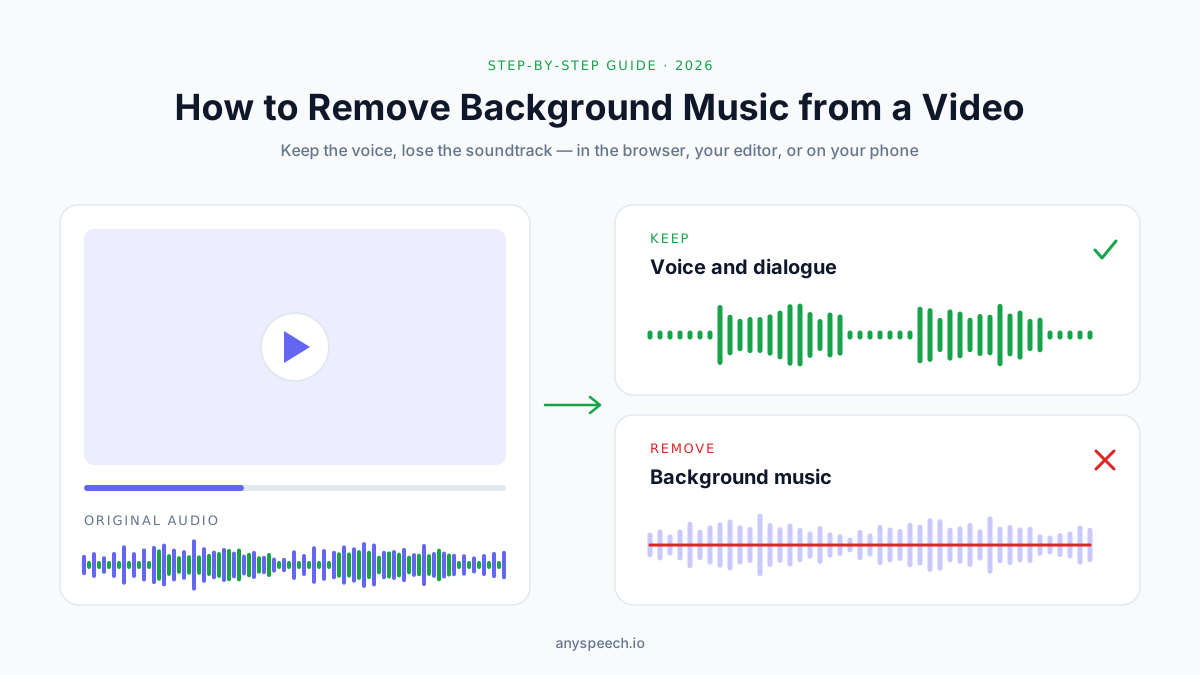
How to Remove Background Music from a Video (7 Ways, 2026)
Remove background music from a video and keep the voice. 7 methods: online AI tools, CapCut, YouTube Erase song, Resolve, Premiere, iPhone and Audacity.
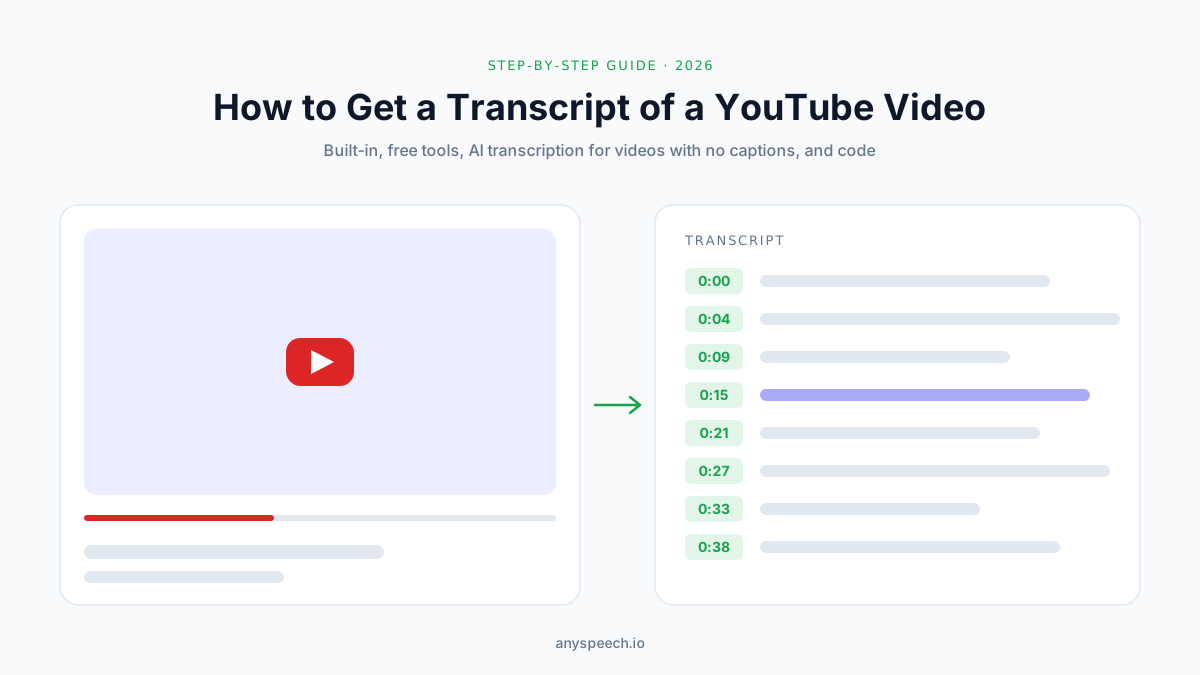
How to Get a Transcript of a YouTube Video (6 Ways, 2026)
Get a transcript of any YouTube video: built-in Show transcript, phone, free generators with TXT/SRT export, YouTube Studio, videos with no captions, and code.