
How to Use Text to Speech in 2026: The Complete Platform-by-Platform Guide
Learn how to use text to speech on iPhone, Android, Google Docs, TikTok, Discord, and more. Step-by-step guides for every device and platform, plus tips for getting the best results.
You open a 40-page report at 9 PM and your eyes are already tired. Or you're driving and realize you forgot to finish that article you needed to read before your meeting. Or you're learning a new language and want to hear the words, not just read them.
Text to speech was built for exactly these moments.
Here's the thing: most people know text to speech exists, but they've never set it up properly. The feature is buried in accessibility settings, the steps differ on every device, and platforms like TikTok or Discord have their own quirky way of handling it.
This guide covers everything — from enabling the built-in TTS on your phone in under two minutes, to using it for video creation, to turning it off when it starts reading your notifications aloud at full volume in public.
Let's get into it.
What Is Text to Speech (and Is It AI)?
Text to speech (TTS) is technology that converts written text into spoken audio. You feed it words, it gives you back a voice.
But not all TTS is the same. The version built into your phone from ten years ago sounds like a robot reading a shopping list. Modern AI-powered text to speech is different — it understands punctuation, pauses naturally, adjusts tone mid-sentence, and can sound genuinely close to a real person.
Traditional TTS vs. AI-Powered TTS
| Feature | Traditional TTS | AI-Powered TTS |
|---|---|---|
| Voice quality | Robotic, monotone | Natural, expressive |
| Emotional range | Flat, no variation | Adjusts to content |
| Pronunciation | Often gets names wrong | Context-aware |
| Language support | 10–20 languages | 60–100+ languages |
| Customization | Speed only | Voice, speed, style, tone |
| Cost | Free (built-in) | Free tier + paid plans |
So yes — modern text to speech is AI. Whether you're using the voice assistant on your phone or a dedicated online tool, there's a neural network doing the heavy lifting.
Worth knowing: Built-in device TTS (like iPhone's Speak Screen) is great for reading existing content. If you need to create audio files — for a video, podcast, or presentation — you'll want a dedicated tool like AnySpeech, which gives you more control over voice, quality, and output format.
For a deeper look at how AI voices work and how to pick the right one, check out our guide on how to use AI text to speech.
How to Use Text to Speech on Your Phone
Your phone can read almost anything to you — articles, emails, PDFs, even your own notes. Here's how to enable it on both iPhone and Android.
Text to Speech on iPhone
Apple calls this feature "Spoken Content" and it lives inside Accessibility settings. Here's how to turn it on:
- Open Settings
- Tap Accessibility
- Tap Spoken Content
- Toggle on Speak Selection — this lets you highlight any text and tap "Speak"
- (Optional) Toggle on Speak Screen — this reads everything on your screen
Once it's on, select any text anywhere on your phone, and you'll see a "Speak" option in the popup menu.
Pro Tip: With Speak Screen enabled, you can swipe down from the top of your screen with two fingers to have your entire screen read aloud instantly. No need to select anything. Works great for long articles and emails.
Adjusting the voice and speed: Back in Spoken Content, tap Voices to choose from different accents and styles. Tap Speaking Rate to slow down or speed up. If you're using TTS to study or learn, 0.8x speed helps with retention. For commute listening, 1.3x is surprisingly comfortable after a few days.
Text to Speech on Android
Android's setup varies slightly depending on your phone brand, but the core steps are:
- Open Settings
- Go to Accessibility
- Tap Text-to-speech output (or "TTS Output" on some devices)
- Choose your preferred TTS engine (Google's is installed by default)
- Tap the play button to hear a sample
To actually use TTS to read content, you'll also need to enable Select to Speak:
- In Accessibility, find Select to Speak
- Toggle it on
- You'll see a small floating icon appear — tap it, then tap any text on screen to hear it read aloud
Samsung note: On Samsung devices, look for Voice Assistant in Accessibility for full screen-reading capabilities. It works differently from stock Android — you navigate by touching the screen and tapping twice to select.

How to Use Text to Speech on Your Computer
Text to Speech on Windows
Windows has a built-in screen reader called Narrator. It reads your entire screen, including menus and buttons, not just the content you select.
To turn it on:
- Press Win + Ctrl + Enter (the fastest way)
- Or go to Settings > Accessibility > Narrator and toggle it on
Windows 11 added more natural-sounding voices in recent updates. Go to Settings > Accessibility > Narrator > Choose a voice to see what's available in your language.
Better option for content: If you just want to read a document or web article — not navigate your entire computer — Narrator can be overkill. Try the Immersive Reader in Microsoft Edge instead. Open any webpage, click the book icon in the address bar, then hit Read Aloud. Clean, distraction-free, and uses much better voices than Narrator.
Text to Speech on Mac
Mac's TTS feature is called Spoken Content (same name as iPhone):
- Go to System Settings (or System Preferences on older macOS)
- Click Accessibility
- Select Spoken Content
- Check Speak selection
Now highlight any text anywhere on your Mac and press Option + Esc to hear it read aloud. You can also enable Speak screen to read everything on screen at once.
Does Chrome Have Text to Speech Built In?
Chrome itself doesn't have a built-in read-aloud feature. But you have two good options:
Option 1 — Use your OS: The Windows/Mac shortcuts above work everywhere, including inside Chrome.
Option 2 — Install an extension: Extensions give you more control over speed, highlighting, and voice selection.
| Extension | Best For | Available On |
|---|---|---|
| Read Aloud | Everyday reading, simple setup | Chrome, Firefox, Edge |
| Immersive Reader | Long articles, focus mode | Edge (built-in) |
| Natural Reader | Uploading PDFs and documents | Chrome |
Quick answer for "Is there a Google extension for text to speech?" Yes — Read Aloud is the most popular, free, and works well. Install it once and you're done.
How to Use Text to Speech for Video Creation
More video creators are switching to AI voiceovers than ever — and it makes sense. No microphone setup, no retakes for a stumbled word, no inconsistency between Monday's recording and Friday's.

Here's how TTS works inside the most popular video tools.
Text to Speech in CapCut
CapCut has a solid built-in TTS feature. Here's the flow:
- Create a new project and add your video or clip
- Tap Text in the bottom toolbar
- Type your script
- Tap the text layer, then tap Text to Speech
- Browse voices by language and style, then tap Apply
CapCut's voice library covers 20+ languages with multiple styles per language. The quality is decent for social content, though you'll notice it's less expressive for longer narrations.
Text to Speech on TikTok
TikTok has a popular built-in TTS that's become almost its own audio aesthetic:
- Record or upload your clip
- Tap the Text icon and type what you want
- Hold the text layer and select Text-to-Speech
- Choose a voice from the available options
The TikTok TTS voices are recognizable — they're intentionally stylized rather than trying to sound realistic. Works well for captions and quick narrations.
Text to Speech for YouTube Videos
YouTube doesn't have a built-in TTS feature. The workflow most creators use:
- Write your script in a document
- Generate the audio using an AI voice tool
- Import the audio file into your video editor
- Sync it with your video footage
For channel-quality voiceovers where you want consistent tone across videos, AnySpeech lets you pick one voice and use it for every video — same accent, same pacing, same feel, every time.
Text to Speech in Canva
Canva has TTS built into its video editor:
- Open or create a video project
- Click Elements in the left sidebar
- Search for Text to speech
- A panel opens where you type your script and choose a voice
- The generated audio appears as a clip in your timeline
Canva's voices are AI-generated and work well for presentations and explainer videos. The voice selection is more limited than dedicated tools, but the workflow is fast if you're already designing in Canva.
Text to Speech in Premiere Pro
Premiere Pro doesn't have native TTS. The professional workflow is:
- Generate your voiceover audio using a dedicated TTS tool
- Export as WAV or MP3
- Import into Premiere and drop it into your audio track
Pro Tip: If you need a voiceover that matches a specific visual clip length, generate it first and then cut your visuals to match — not the other way around. It's much easier to adjust video cuts than to re-time audio.
| Video Tool | Built-in TTS | Voice Count | Audio Export | Best For |
|---|---|---|---|---|
| CapCut | ✅ Yes | 20+ | Built into export | Short-form, social |
| TikTok | ✅ Yes | 10+ | None (in-app only) | TikTok content only |
| Canva | ✅ Yes | 15+ | MP3 | Presentations, explainers |
| DaVinci Resolve | ❌ No | — | — | Professional editing |
| Premiere Pro | ❌ No | — | — | Professional editing |
Need better voice quality for a YouTube series? Generate AI voiceovers with a consistent voice across all your episodes — 200+ voices, 70+ languages, downloadable as MP3 or WAV.
How to Use Text to Speech in Google Docs
Here's a question I see a lot: does Google Docs have text to speech built in?
The honest answer: not exactly. Google Docs added an AI audio generation feature in 2024 (in Labs), but for most users, there's no simple "read this doc to me" button. Here are the three ways that actually work:
Method 1: Chrome Extension (Easiest)
Install Read Aloud from the Chrome Web Store. Once installed:
- Open your Google Doc
- Click the Read Aloud icon in your browser toolbar
- It starts reading from wherever your cursor is
You can adjust speed and voice from the extension menu. This is the most reliable method and takes about 90 seconds to set up.
Method 2: Operating System Accessibility
If you've already enabled Spoken Content (Mac) or Narrator (Windows), it works in Google Docs too:
- Mac: Select text → Option + Esc
- Windows: Narrator will read the document (though navigation can be clunky)
- Chromebook: Enable ChromeVox in Settings > Accessibility for full doc reading
Method 3: Export and Use a Dedicated Tool
For longer documents where you want high-quality audio:
- Copy the text from your doc
- Paste it into AnySpeech's free TTS tool — no signup needed
- Choose your voice and language
- Download as MP3
This method is best when you want an actual audio file, not just listening while you read along. The free tool handles up to 5,000 characters per request — plenty for most documents.
How to do text to speech on Google Docs for accessibility: If you need TTS for accessibility reasons (dyslexia, visual impairment), ChromeVox on Chromebook is the most fully-featured option. On Windows, Narrator with "read by paragraph" mode is the smoothest for long documents.
Text to Speech for Discord and Twitch
Setting Up Text to Speech on Discord
Discord has a native TTS feature that uses your device's voice engine:
- Open Discord and go to User Settings (gear icon)
- Click Accessibility
- Under Text-to-Speech, choose when Discord reads messages:
- For all channels — reads every message
- For current selected channel — only the active channel
- Never — disables it
To send a TTS message that others in the channel hear:
/tts your message hereType /tts followed by a space and your message. Everyone in the channel will hear it read aloud (if they have TTS enabled). Note: server admins can disable this permission.
Text to Speech on Twitch and Live Streams
Twitch doesn't have native TTS, but streamers use it through donation alerts:
- Streamlabs and StreamElements both support TTS for donation/subscription alerts
- Viewers can trigger a TTS message by donating above a set threshold
- You set the voice, speed, and which words are filtered
Pro Tip: Discord's built-in TTS uses your device's default voice, which can sound robotic mid-conversation. If you want custom voices for stream alerts or Discord bots, generate audio clips in advance with an AI voice generator and trigger them through a soundboard — much cleaner result.
Text to Speech for PDFs and Books
Reading PDFs with Text to Speech
You have more options than most people realize:
Adobe Acrobat Reader (free version):
- Open your PDF in Acrobat
- Go to View > Read Out Loud
- Click Activate Read Out Loud
- Then View > Read Out Loud > Read This Page Only or the whole document
Microsoft Edge (underrated): Open any PDF in Edge and you'll see an Immersive Reader icon in the toolbar. It extracts the text cleanly and reads it with one of Edge's natural-sounding voices. Better than Acrobat for most reading-focused use cases.
For scanned PDFs: If your PDF is a scanned image rather than real text, neither of the above will work. You'll need to run it through an OCR tool first (Adobe's built-in OCR, or a free online option), then use TTS on the extracted text.
Text to Speech for Books and Kindle
Kindle devices: Many Kindle e-readers have a text-to-speech feature, though Amazon has limited it on newer models. Check Settings on your device — if TTS is supported, you'll see an "Audio" option when reading.
Kindle app on phone: Use your phone's built-in Speak Selection or Select to Speak (see the phone section above). The Kindle app is just an app like any other — the OS-level TTS works on it.
Converting a book to audio: If you want a high-quality audio version of something you've written (a personal document, a long article, an e-book), copy the text and use a dedicated voice tool. This way you get a proper audio file you can listen to on any device, offline, at whatever speed you want.
Turn any document into audio: AnySpeech's TTS tool handles up to 50,000 characters per request on paid plans — long enough for full chapters. Choose your voice, generate, and save as MP3.
How to Turn Off Text to Speech on Any Device
Sometimes TTS turns on by accident — especially TalkBack or VoiceOver, which take over your entire device navigation when activated. Here's how to disable it on each platform.
Turn Off Text to Speech on iPhone
- Go to Settings > Accessibility > Spoken Content
- Toggle off Speak Selection and/or Speak Screen
If VoiceOver got turned on accidentally (it changes how you navigate entirely):
- Triple-click the side button to toggle it off immediately
- Or: Settings > Accessibility > VoiceOver → toggle off
The triple-click shortcut is worth memorizing — it works when VoiceOver makes normal navigation confusing.
Turn Off Text to Speech on Android
For standard TTS: Settings > Accessibility > Select to Speak → toggle off
If TalkBack got activated (full screen reader mode):
- Triple-press the power button (on most devices) to turn it off
- Or: Settings > Accessibility > TalkBack → toggle off
On Samsung, look for Voice Assistant instead of TalkBack — same feature, different name.
Turn Off Text to Speech on Windows
For Narrator:
- Keyboard shortcut: Win + Ctrl + Enter (same key that turns it on)
- Or: Settings > Accessibility > Narrator → toggle off
For Immersive Reader in Edge: Just close the Immersive Reader panel — there's nothing persistent to turn off.
Turn Off Text to Speech on Mac
- System Settings > Accessibility > Spoken Content
- Uncheck Speak selection and/or Speak screen
Or just press Option + Esc to stop playback immediately without going into settings.
Turn Off Text to Speech on Chromebook
- Settings > Accessibility
- Find ChromeVox and toggle it off
Or: Ctrl + Alt + Z to toggle ChromeVox on and off quickly.
Note: Turning off TTS doesn't delete it — everything's still there if you want to re-enable it later. The settings paths above will get you back in.
The Best AI Text to Speech Tools in 2026
Built-in device TTS is fine for reading existing content. But if you want to create high-quality audio — voiceovers, podcasts, e-learning, or anything you'll share with others — you need a dedicated tool.
Here's what to look for:
- Voice naturalness — does it sound like a person or a reading machine?
- Language support — if you work in multiple languages, this matters a lot
- Free tier — can you test it without paying first?
- Audio export — can you download WAV/MP3, or is it locked to in-app playback?
- Character limits — how much text can you generate at once?
AnySpeech covers all of these. The free Basic voice works with 40+ languages, needs no signup, and has no per-day character limit for registered users. The Advanced and Pro voices are noticeably more expressive and natural-sounding than anything built into a phone or browser.
🎁 Start for free
AnySpeech's free tier includes:
- Unlimited Basic voice generation (no signup required for first 10 uses)
- 40+ languages
- MP3 download
- No credit card needed
For voice cloning — where the AI learns from a sample of your actual voice — that's a separate feature. AnySpeech's voice cloning uses a 10–30 second clip to generate speech that sounds like you, with emotion control built in.
6 Text to Speech Uses You Probably Haven't Thought Of
Most people use TTS for audiobooks and accessibility. But there are some genuinely useful applications that don't get talked about much:
📧 Proofreading emails and documents — Reading your own writing silently, your brain autocorrects errors before you see them. Hearing it read back reveals awkward phrasing and missing words that you'd miss by reading. Try it before sending your next important email.
🍳 Cooking without touching your phone — Generate audio for any recipe, then listen on a speaker while your hands are covered in flour. Much better than trying to scroll with your elbow.
🏋️ Workout instructions — Turn your training plan into audio. Load it onto your phone and listen through earbuds at the gym — no screen-checking mid-set.
🧘 Recording your own guided meditations — Write a personalized script, generate the audio with a calm voice, and use it like a proper meditation track. Much cheaper than buying a meditation app.
🎮 Prototyping game dialogue — If you're building a game and need placeholder voice lines for NPCs, TTS lets you test the pacing and feel before committing to professional voice acting. Saves a lot of "that didn't sound right" moments.
📱 Accessibility testing for your own website or app — If you build things for the web, listening to your own product through a screen reader is one of the fastest ways to find broken navigation and missing alt text. Eye-opening every time.
Explore more creative uses with our AI voice generator — the free tool works for all of these.
7 Pro Tips for Better Text to Speech Results
Whether you're using a built-in feature or a dedicated tool, these habits make a noticeable difference.
-
Use punctuation deliberately — Commas create short pauses. Periods create longer ones. Ellipses create thinking pauses. If you want the voice to pause before an important point, add a comma even where grammar doesn't require one.
-
Spell out numbers and abbreviations — "Dr." might be read as "Doctor" or just "D.R." — it depends on the engine. Write "Doctor" to be sure. Same with numbers: "1,500" can sound odd; "fifteen hundred" is usually cleaner.
-
Break long sentences into shorter ones — AI voices handle 20-word sentences better than 40-word ones. If a generated passage sounds rushed or monotone, split it up. Short sentences also naturally create better pacing.
-
Test multiple voices before committing — The first voice you try is rarely the best one. For content that people will actually listen to, spend 5 minutes auditioning 3–4 options with your actual script. The difference is often significant.
-
Listen to your output before distributing it — Every TTS tool has pronunciations it gets wrong. Names, technical terms, company names. A 30-second listen before sharing catches 90% of problems.
-
Adjust speed after generating — Most tools and devices let you play back at different speeds. For language learning, 0.75x helps. For personal listening, many people settle at 1.25–1.5x once they get used to it.
-
Match voice style to content — A bright, energetic voice works for marketing copy. A calm, measured voice works for meditation scripts. A clear, neutral voice works for instructions. These seem obvious in theory; in practice, people often just use the default voice for everything.
Frequently Asked Questions
What is text to speech?
Text to speech is software that reads written text aloud using a synthesized voice. You give it text — a sentence, a document, a web page — and it converts it to audio. Originally developed for accessibility purposes, it's now used for everything from video voiceovers to language learning.
Is text to speech AI?
Yes, modern text to speech is AI-powered. Older systems used pre-recorded phoneme segments stitched together (which is why they sounded robotic). Today's systems use neural networks trained on hours of human speech, which is why they can produce natural-sounding voices with appropriate pauses, emphasis, and tone.
Is text to speech free?
Built-in TTS on phones and computers is completely free. Dedicated AI tools like AnySpeech offer free tiers — you can generate speech without a credit card or signup. Premium AI voices with higher naturalness and more languages typically require a paid plan, but most tools let you try before you buy.
Start free at AnySpeech — no signup required for your first uses.
How does text to speech work?
Modern AI TTS works in roughly three steps: First, the system analyzes the text — identifying sentence structure, punctuation, and context (so "present" as a noun vs. a verb gets the right pronunciation). Second, the neural model converts this analysis into acoustic features — basically a blueprint for how the audio should sound. Third, that blueprint is rendered into audio. The whole process takes seconds.
What is the best free text to speech tool?
For creating audio files — voiceovers, podcasts, presentations — AnySpeech's free tier is a solid starting point. It includes 40+ languages, no signup required for basic use, and outputs real audio files you can download. For just reading web content, your device's built-in options (iPhone Spoken Content, Edge Immersive Reader, Android Select to Speak) are fine and cost nothing.
Can I use text to speech audio for commercial purposes?
Built-in device TTS isn't really designed for content creation. For commercial use — like publishing a video with a TTS voiceover — you need a tool with commercial licensing. AnySpeech's paid plans explicitly allow commercial use.
Does Google have a free text to speech tool?
Google's Android OS includes a TTS engine (used by Select to Speak) that's free and works well for personal reading. For creating downloadable audio files, Google doesn't have a simple consumer-facing tool. Google Cloud offers a text to speech API aimed at developers, with a free usage tier, but it requires technical setup. For most people, a dedicated tool is simpler.
Ready to Put Text to Speech to Work?
Text to speech has moved from a niche accessibility feature to a tool most people will find useful in their daily lives — whether that's clearing your reading pile on the commute, building a voiceover workflow, or just listening to your Google Docs instead of reading them.
The device setup takes two minutes. The difference it makes over time adds up.
Three ways to get started right now:
- Try our free TTS tool — no signup needed, works instantly
- Browse 200+ AI voices — find one that fits your content
- Clone your own voice — generate speech that sounds like you
Got questions about a specific platform not covered here? Reach out at support@anyspeech.io and we'll add it to the guide.
Author

Categories
More Posts
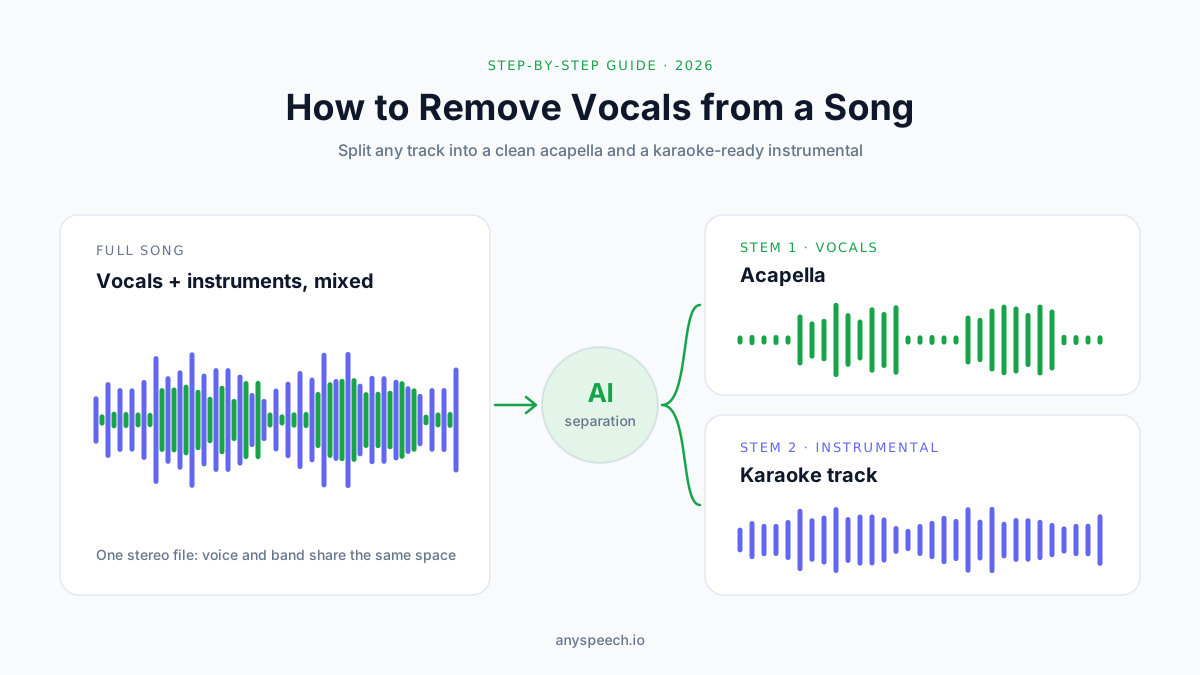
How to Remove Vocals from a Song: 5 Easy Methods (2026)
Remove vocals from any song with an online AI tool, Audacity, UVR, your DAW or your phone. Step-by-step guides, fixes for bad results, and legal basics.
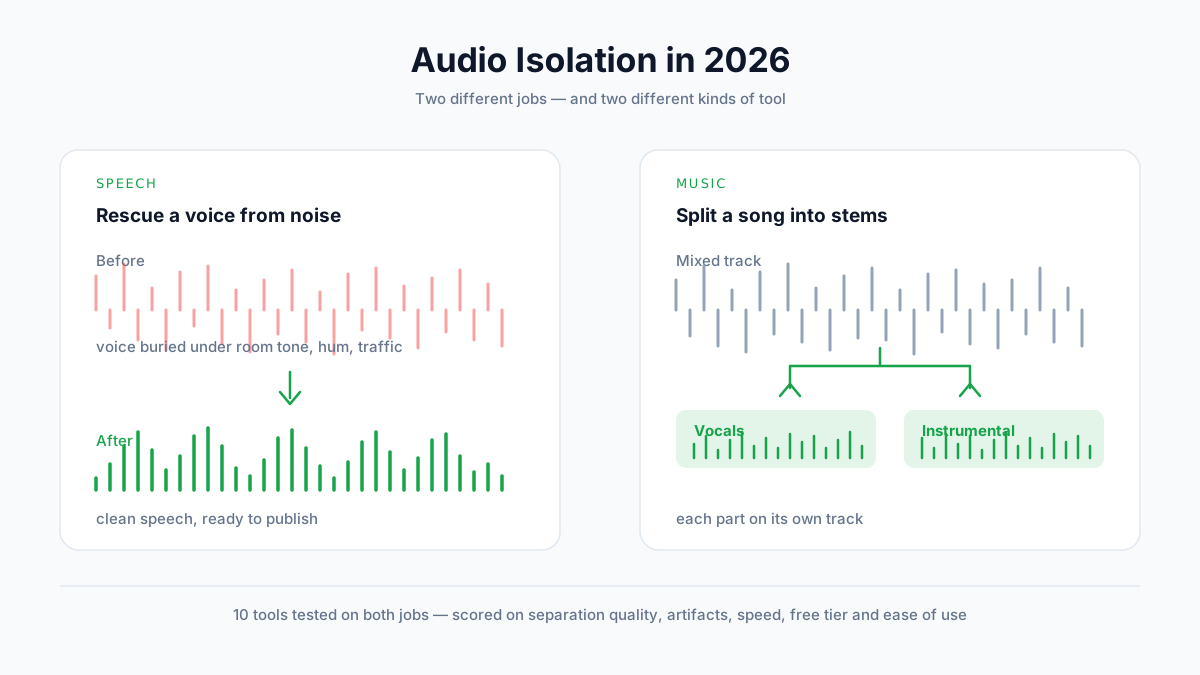
Best Audio Isolation Tools in 2026 (10 Tools Tested)
We tested 10 audio isolation tools on both speech and music. Compare separation quality, artifacts, pricing, and free tiers — and find out which type of tool your job actually needs.

How to Use Text to Speech on Mac: The Complete Guide (2026)
Learn how to use text to speech on Mac with built-in tools, shortcuts, and AI voices. Plus how to do speech to text with Dictation — step by step.